
Recommended Watch Configurations
There are many settings on the Apple Watch which can greatly affect the behavior and battery life. Here is our recommended configuration for the best experience in the backcountry:
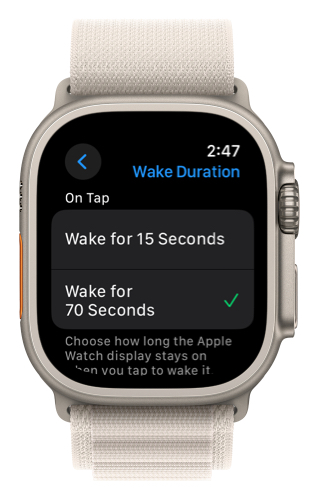
- Set the Wake Duration to 70 seconds.
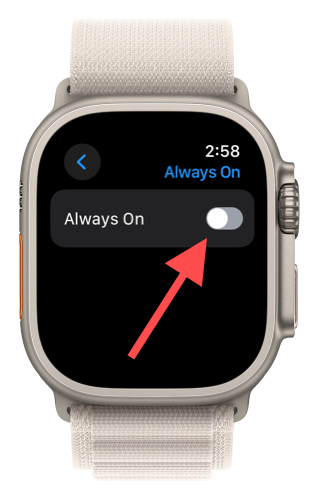
- Toggle off Always On for the display.
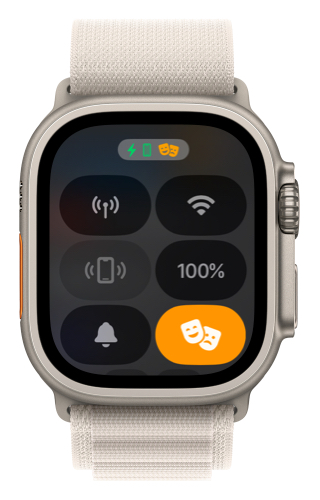
- Turn on Theater Mode.
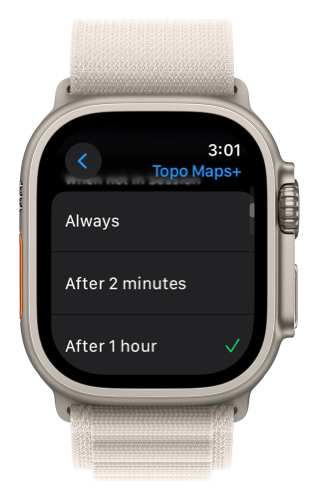
- Set Return to Clock to 1 hour.
- Record your tracks with Apple Workout, even if you don’t need the recording.
Wake Duration:
By default, the Watch will sleep after 15 seconds, which isn’t very much time. Setting this to 70 seconds (the max amount) gives you more time to look at the display, but if you only need to glance at it, make sure to cover your watch with your hand to cause it to turn off in order to conserve battery (this only works with Theater Mode turned on).
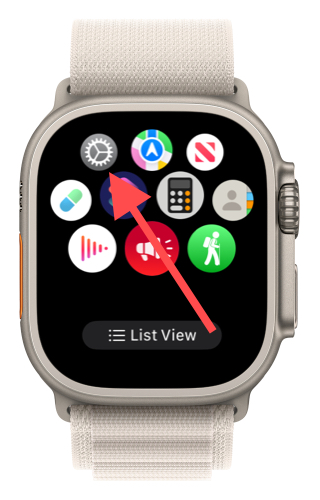
- To change this setting, first tap the Settings app:
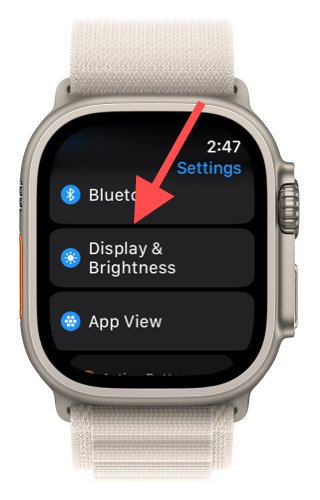
- Then tap Display & Brightness:
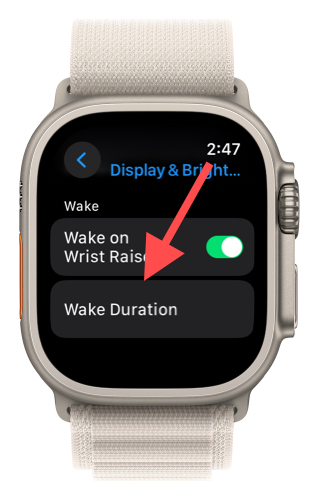
- Tap Wake Duration:
- Set to 70 seconds.
Always On:
When toggled on, instead of turning the display completely off after the wake duration expires, the screen will display the last image from the interface. For Topo Maps+, this means you would see what the map last looked like, but it won’t update until you raise your wrist. This is not very helpful, and consumes a ton of battery, so we recommend you toggle it off:
- In Display & Brightness, toggle Always On to the off position.
Return to Clock:
By default, the Watch will return to the clock interface after 2 minutes, which stops whatever app was running. This is really unhelpful if you want to keep checking the map! Setting it to 1 hour gives you more time.
Note: this setting is irrelevant if you record your tracks, since the Watch will keep an app open if it is the active Apple Workout.
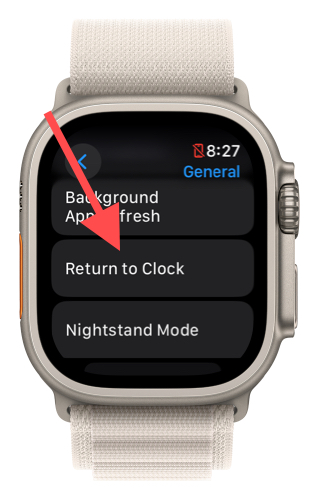
- In Settings -> General, tap Return to Clock.
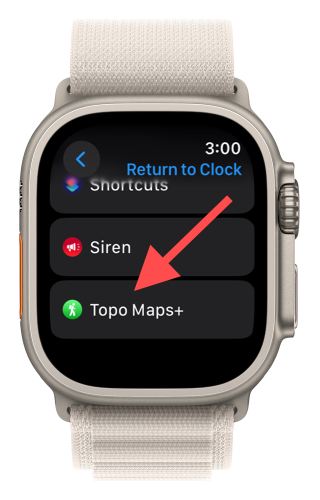
- Select Topo Maps+.
- Tap Custom.
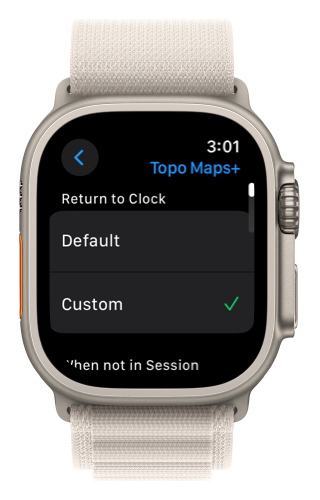
- Then tap After 1 hour.
Theater Mode:
This one will depend on your personal preference, as it is really nice to have the display turn on when you raise your wrist. Theater Mode turns that off, which is great if you’re using trekking poles since the display will probably keep thinking you’re raising your wrist. If this is the case, (or you just move your arms a lot) using Theater Mode will save a good bit of battery.
- Tap the side button to bring up Control Center, and tap the Masks icon to enable/disable:
Record Your Tracks:
As mentioned above, recording your tracks uses Apple Workout, which keeps that app active. It also makes seeing your location instantaneous, rather than having to wait for the GPS to locate you after the watch wakes up again.
If you don’t know how to record your tracks, visit this article which explains it in detail.