Importing & Exporting CVS Files
You can import and export CSV files in Topo Maps+. When you import a CSV file the columns are preserved and the data is imported into a Data Layer.
CSV File Format:
The CSV must include a “Location,” “Geometry,” or both “Latitude” and “Longitude” columns. Location or Geometry values can be a single coordinate pair or a list of pairs. If a list’s first and last coordinates match, it’s imported as a polygon.
You can export a data layer to CSV to see the correct formatting.
If a UUID column is included, Topo Maps+ will merge imported data with existing objects that share the same UUID—allowing you to export, edit in Numbers or Excel, and re-import to update those objects.
Importing CSV Files:
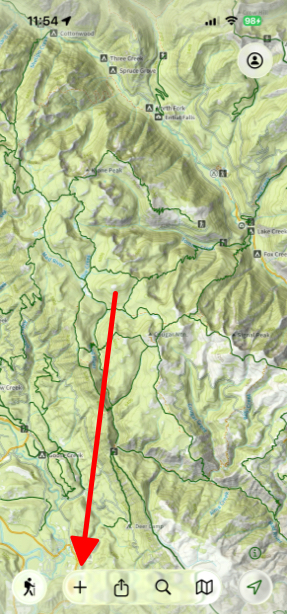
- Tap on the Add button located at the bottom of the screen.
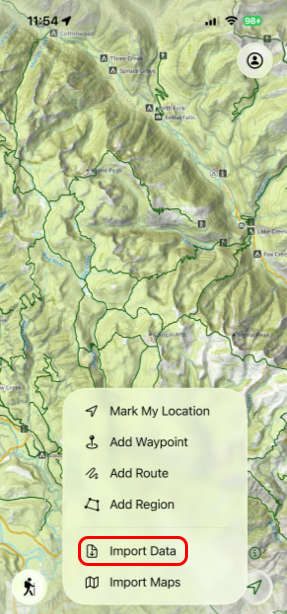
- Next tap Import Data.
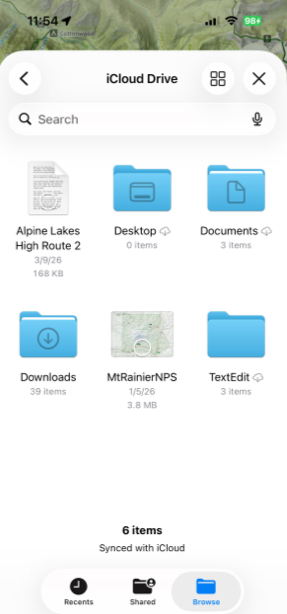
- Then select the data you want to import.
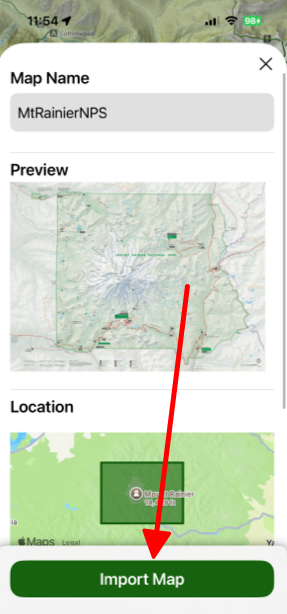
- Then tap Import Map.
Exporting CSV Files:
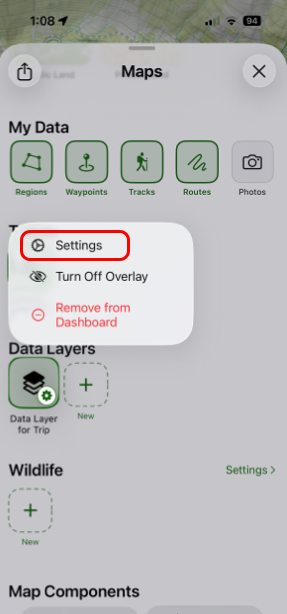
- Tap and hold on one of your Data Layers under the Data Layers tab.
- In the tab that pulls up, tap Export.
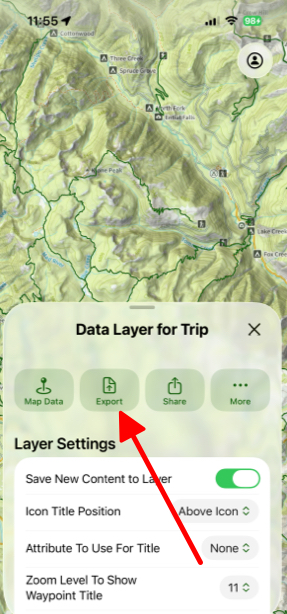
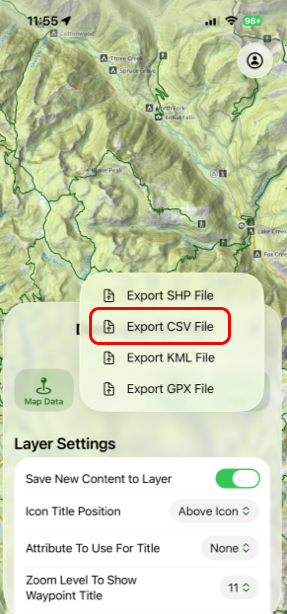
- Finally, tap Export CSV File.