
Importing Data on the Web App
Topo Maps+ supports importing GPX & KML data files.
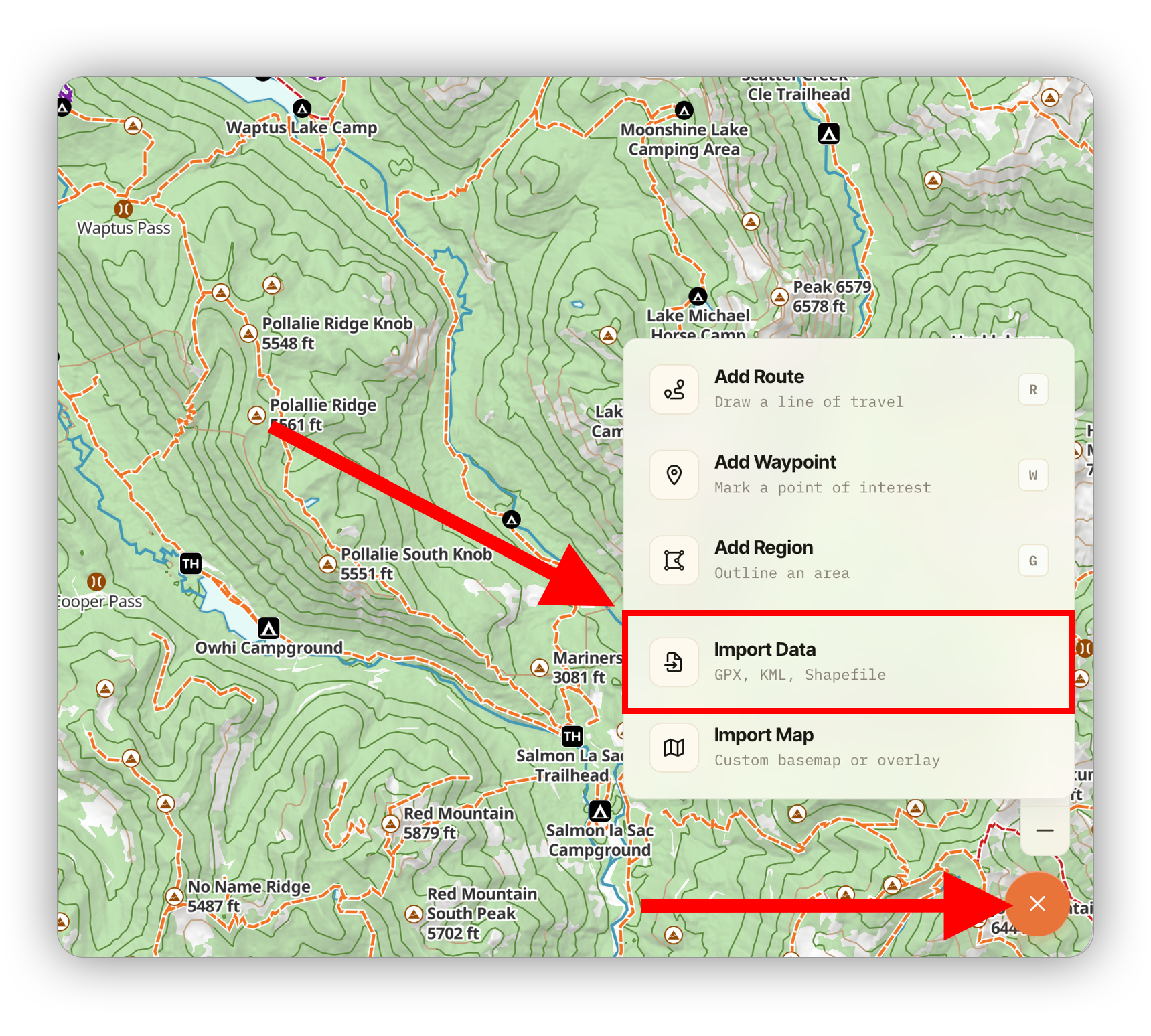
To import a file, click the orange Add button and select Import Data:
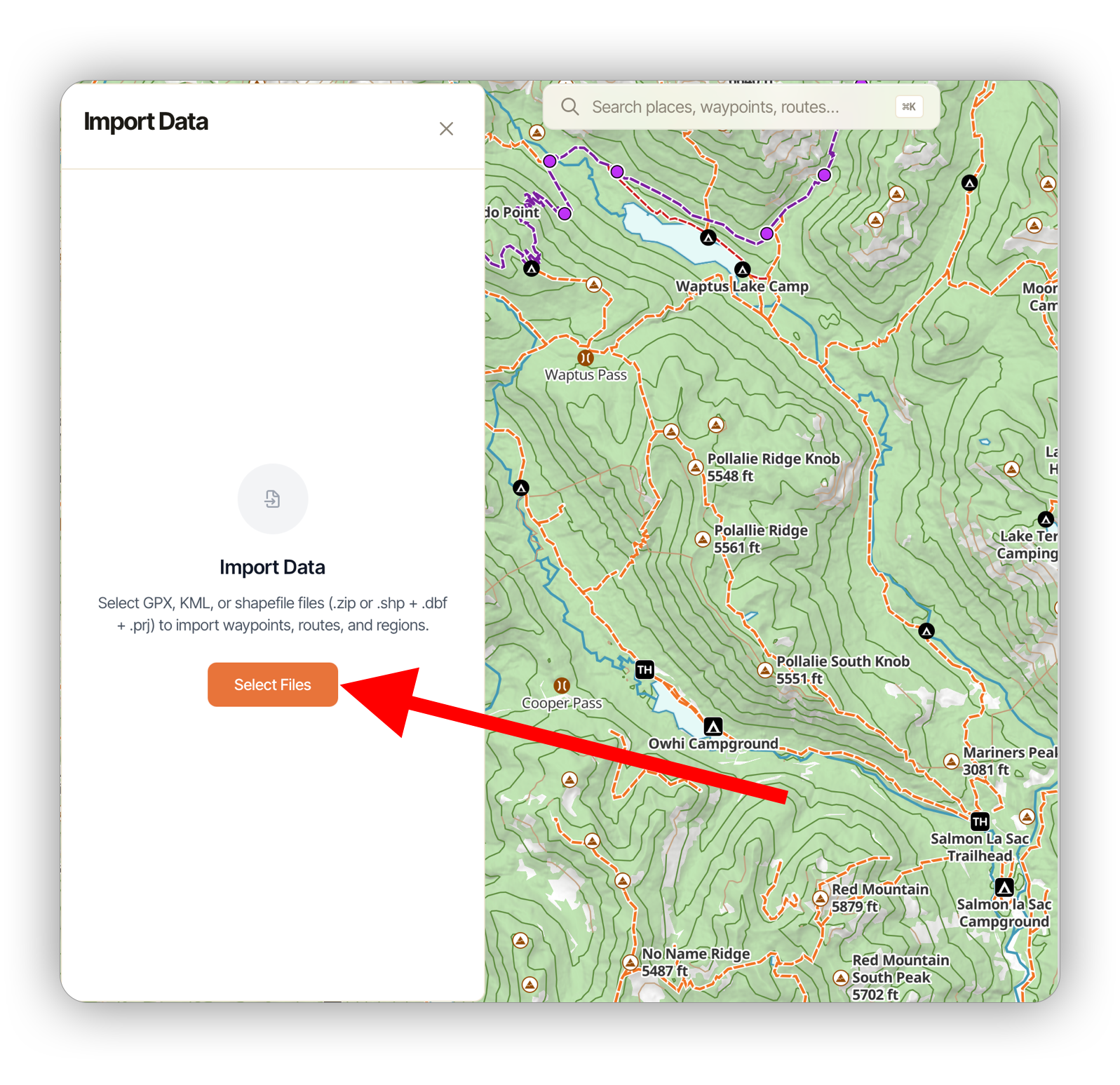
Then, click Select Files and pick the file you want to import.
Topo Maps+ will then parse the file and show you the data. It will all be selected by default, but you can choose to deselect any of the data. Click Import to import the selected data.
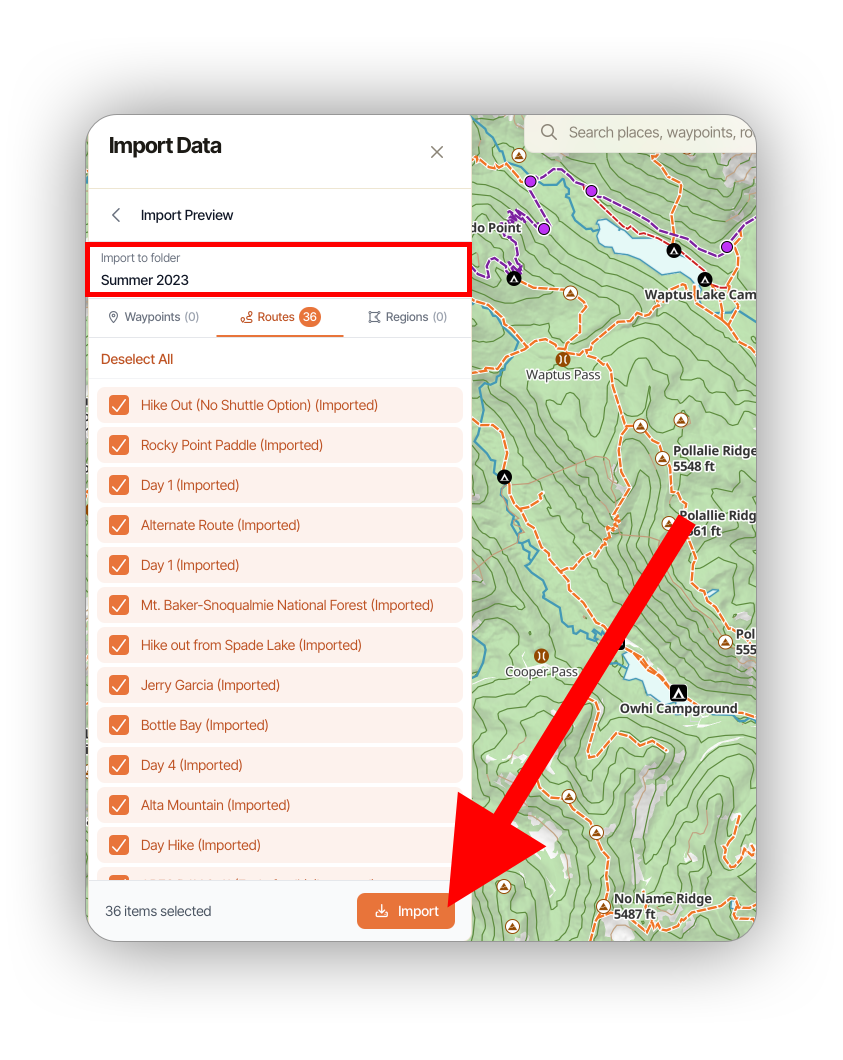
After completing the import, you will find your imported data in a folder matching the name under Import to Folder on this screen.