
PEAKS Overlay
Topo Maps+ comes with a customizable Peaks overlay to view peaks as interactive waypoints.
Accessing the PEAKS Overlay:
- Tap on the Maps icon in the bottom right corner.
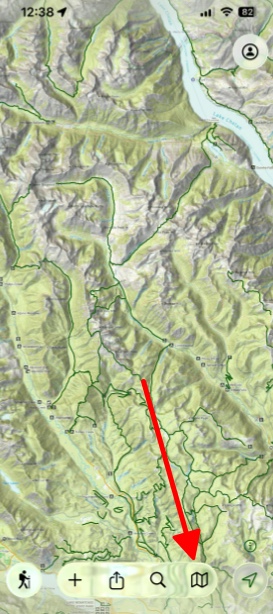
2. Scroll down to the tab Legacy at the bottom of the page and toggle on Peaks.

Making a Waypoint
You may want to convert a peak from the Peaks overlay into your own waypoint, which you can customize further and use in your trip planning. Here’s how you can do that:
- Tap the peak icon on the map that you want to add a waypoint to.

2. Tap Add.

3. After creating the waypoint, you can customize it by tapping Icon to change the icon, or More for more options.

Customizing the Peaks Overlay
- Tap on the Maps icon in the bottom right corner.
- Under the tab Legacy tap and hold on Peaks.
4. After tapping and holding, tap Settings.

Once in the Peaks settings menu, you’ll find two main sections for customization:
A.) Layer Settings
In this section, you can adjust how peak information is displayed.
- Icon Title Position: Change where peak names appear in relation to the icon
- Attribute To Use For Title: This lets you pick either Name & Elevation, only Name, or only Elevation to use for the titles.
- Font Size: Adjust the text size for peak names and elevations

B.) Layer Style
In this section, you can customize the visual appearance. If you tap New Style you can customize different styles.
- Waypoint Icons: Change the icon style used for peak markers
- Elevation Color Scheme: Customize colors based on elevation ranges
- Icon Size: Adjust the size of peak markers
- Label Colors: Modify text colors for better visibility against different map backgrounds

Note: Any changes you make are applied immediately and saved automatically
Tips for Effective Use:
- Reduce label density in crowded mountain areas for a cleaner map appearance
- Create custom elevation color schemes to highlight peaks in your target altitude range
- Adjust settings based on your activity – hiking might benefit from different settings than mountaineering.