Photo Overlay
Topo Maps+ Pro has the ability to analyze the GPS coordinates from your photos and find all photos that you took on a trail. Then you can browse through all of your photos on a trail and see right where you took each one.
Note: In order to use this feature, you must give Topo Maps+ permission to access your photos. To do this, open your device’s settings app (gray gear icon) and find TopoMaps+. Then tap on “Photos” under “Allow TopoMaps+ to Access”, and make a selection from there.
How To Enable:
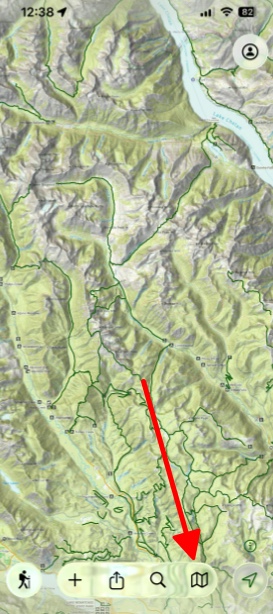
- Tap the folded map icon in the bottom right corner.
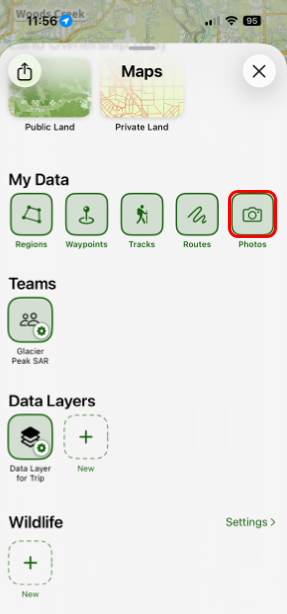
2. Under My Data tap My Photos.
Note: In order for TopoMaps+ to locate where your photos were taken, you have to have had location permissions turned on for your camera at the time the photos were taken.
3. Now, photos will display on the map and you can tap on any to bring up a larger image:
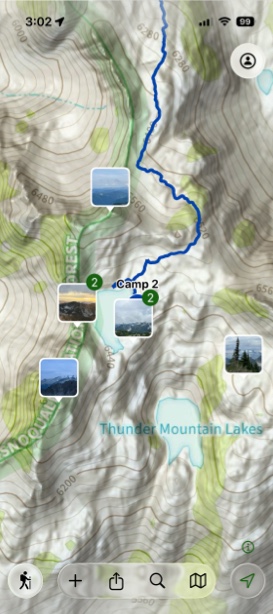
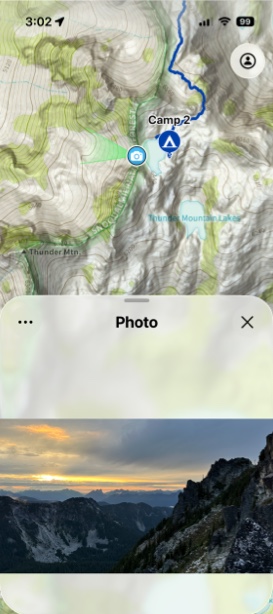
Photo at Waypoint:
Alternatively, if you don’t have geo-tagged photos, but know the general area you took a photo, you can also attach a photo to a waypoint:
- Tap and hold on the place where you want to add your photo and tap Add.
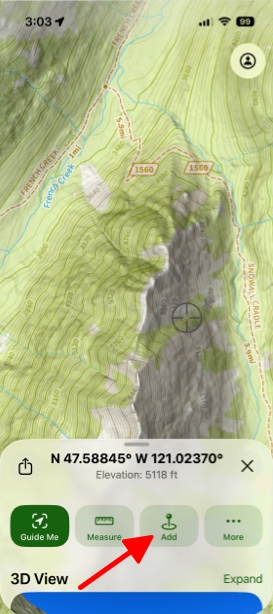
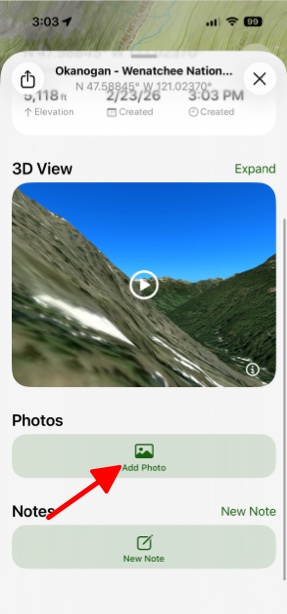
2. Then tap Add Photo.