Creating Routes
Drawing out your own backcountry route on a sweet map is one of Topo Maps+ main features. With the “unified” route drawing tool you can now draw a single route that can go between snapping to existing trails and tracing your own seamlessly.
Note: Make sure to use the “Undo” button to backtrack – tracing backwards will apply on top of what you have already traced!
How To Set Up:
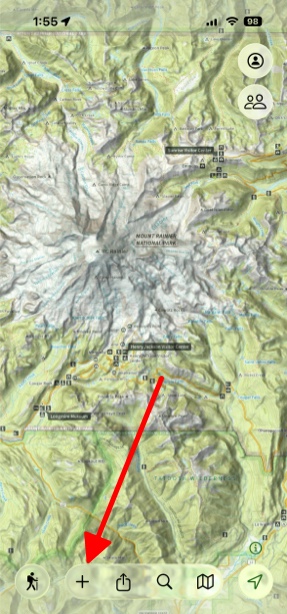
- Tap on the Add button in bottom left corner of the screen.
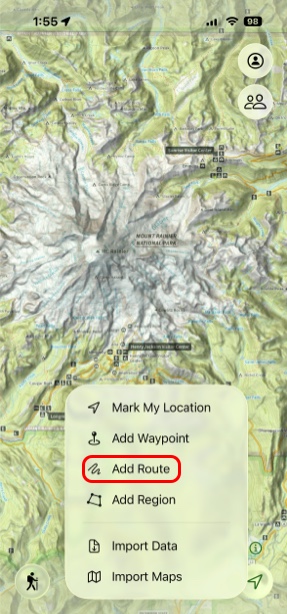
2. Next tap Add Route.
3. Here you can select the method/tool you want to use.
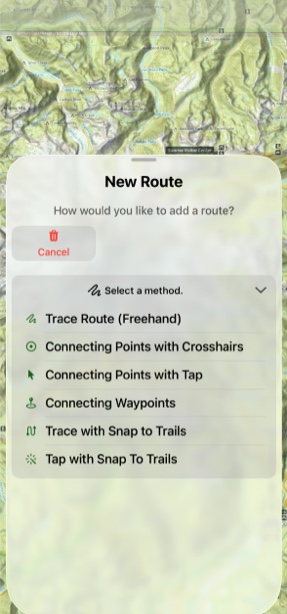
- Trace Route (Freehand) lets you draw your own route without any constraints. This is nice for flexibility but sometimes hard to get exact.
- Connecting Points with Crosshairs lets you drag crosshairs to each point along your route. Each point will automatically create a straight line from the previous point.
- Connecting Points with Tap lets you simply tap each time you want to add a point. This is faster than crosshairs, but harder to be exact with.
- Connecting Waypoints lets you tap on waypoints you have created and use them as points along the trail. This tool will draw a straight line between waypoints you tap on.
- Trace with Snap to Trails lets you create a route based on an existing trail, trails, or part of a trail. This is helpful if you want to plan out a trip that contains pre-existing trails, or if you are planning on using a trail but going cross-country part of the way through.
- Tap with Snap to Trails lets you use selectable trails to create a route, but with segments connecting points instead of a continuous line. Once a trail has been selected, tapping anywhere on the screen will automatically move the route forward on the trail at a point that is closest to where you tapped.
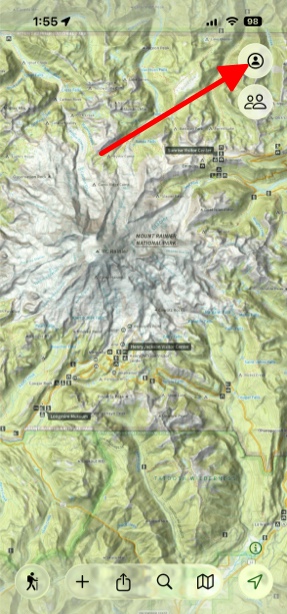
4. To access a saved route, tap the My Account button in the top right corner.
5. Next tap on Routes.
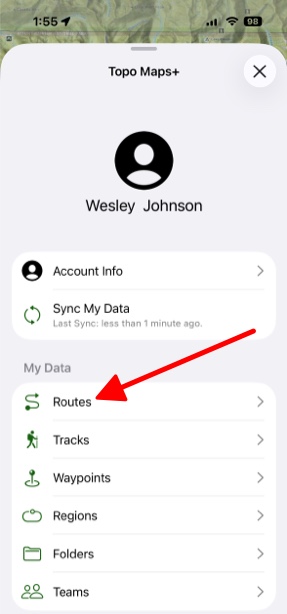
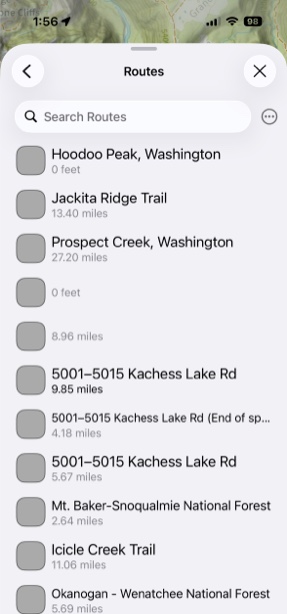
6. Here your saved routes will be displayed.