Elevation Profiles
There are a few ways to view an elevation profile:
- Route, Track or Trail Profile
- Between Two Waypoints
- Line of Sight Profile
Routes, Tracks and Trails:
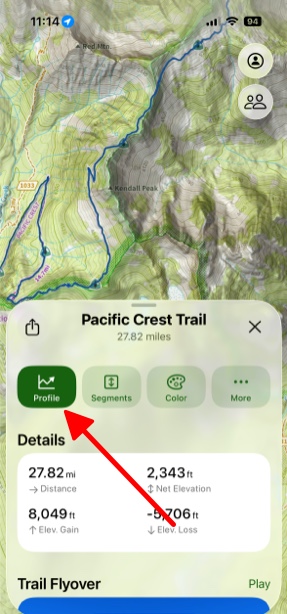
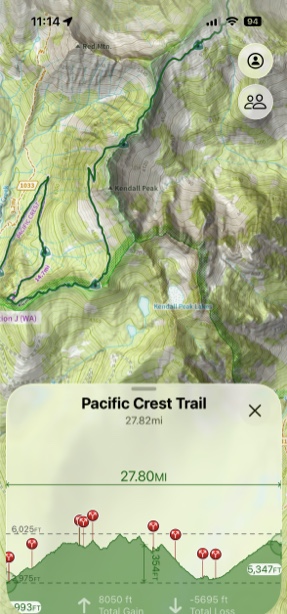
- First, tap on your chosen trail. Then tap Profile.
Between Two Waypoints:
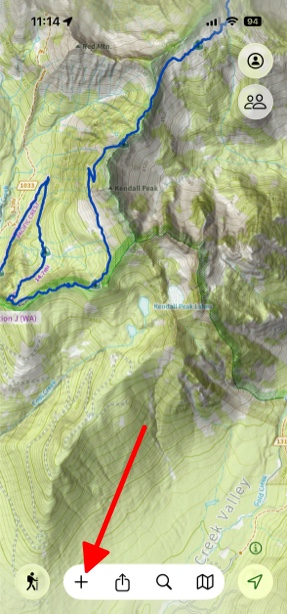
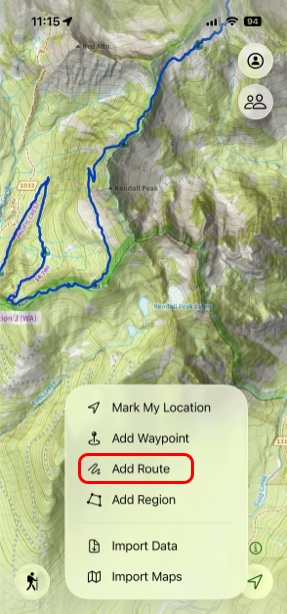
- To view the elevation profile between two waypoints in a straight line tap Add in the bottom left corner of the screen.
2. Next tap Add Route.
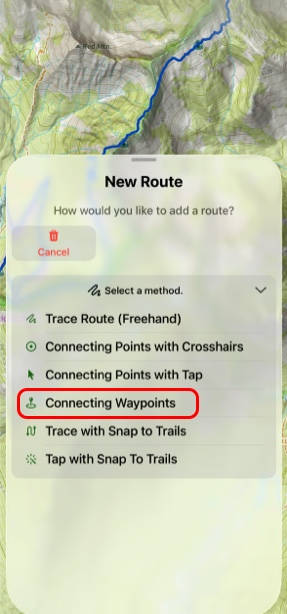
3. Then under Select A Method tap Connecting Waypoints.
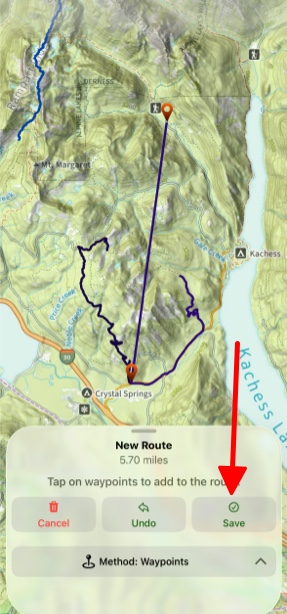
4. Next tap between the waypoints you want to create your route and tap Save.
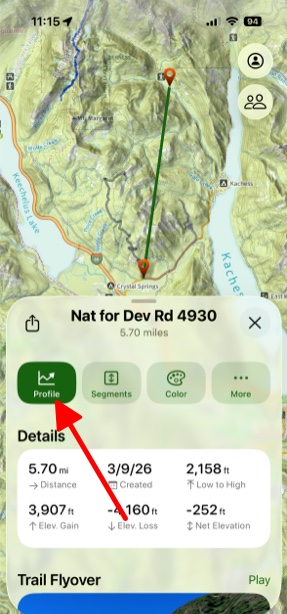
5. Now you can tap on the route and then tap Profile to view the elevation.
Line of Sight Profile:
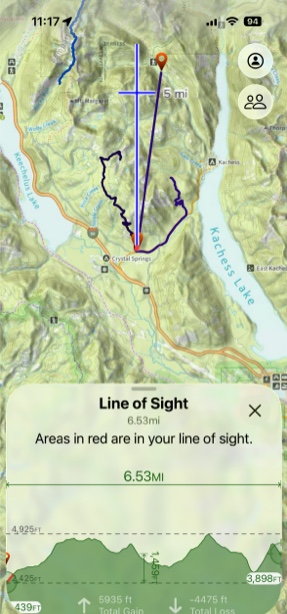
The Line of Sight tool lets you view the elevation profile of a chosen distance in any direction from a given point. You can access Line of Sight by:
- Tapping on your location
- Tapping on a waypoint or photo
- Tapping the hike menu
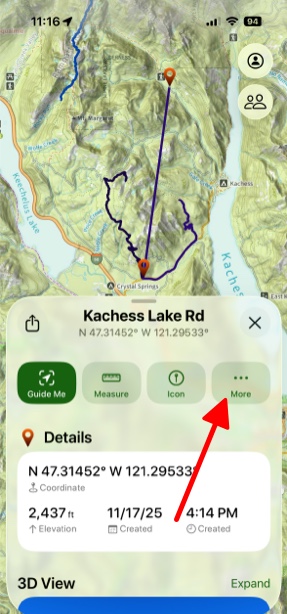
For this example a waypoint is being used.
- Tap on a waypoint and then tap More.
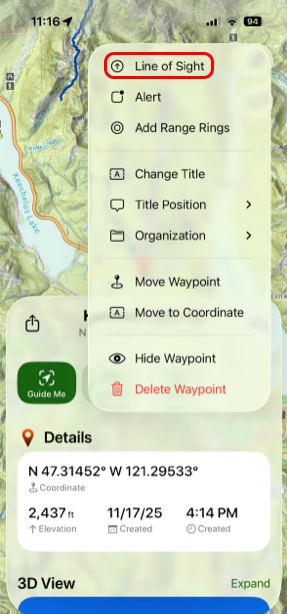
2. Next, tap on Line of Sight.
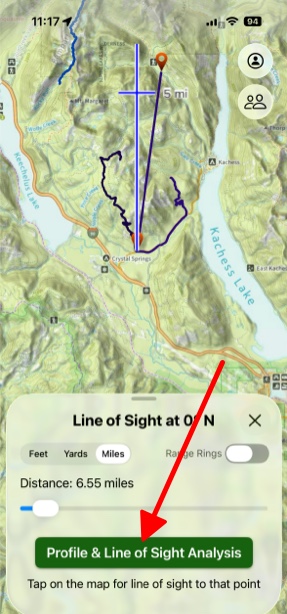
3. Tap on the screen where you want the Line of Sight line to go to, and then tap Profile and Line of Sight Analysis.
4. The map below will be displayed with the red lines being what you can see in your line of sight.