
Searching in Topo Maps+
The search function in Topo Maps+ works for location names, coordinates, and your own data such as routes, waypoints, and recorded tracks.
Tap the search icon in the toolbar at the bottom of the screen, and search what you want.
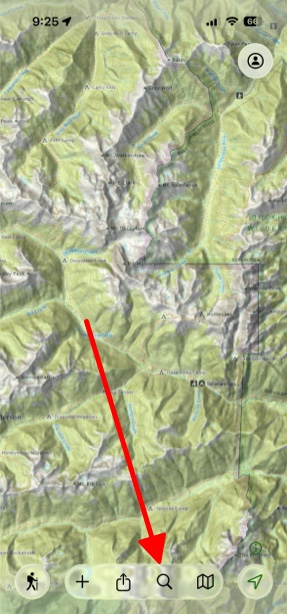
When Searching There’s Two Things Being Searched:
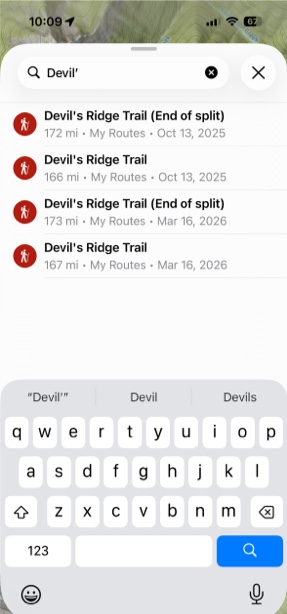
- Your Own Data:
When searching, you can look up your own routes, trails, waypoints, etc. that you have created.
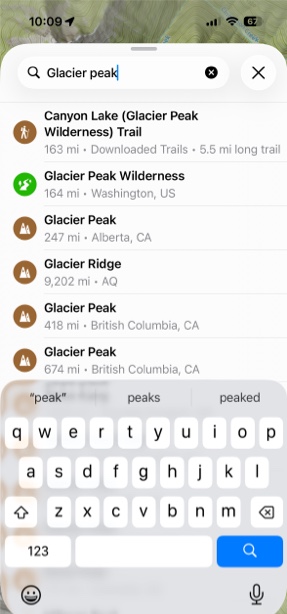
2. Point of Interest Search:
As you can see, searching for Glacier Peak for example does not return the peak itself as the first result. Topo Maps+ uses a combination of a few open source search engines which prioritize different things. However, usually there are related things near the POI that contain the name as well, such as Glacier Peak Wilderness.
Coordinate searching works in a variety of formats (shown below) and as you’re typing out the coordinates it will start displaying just below the search bar. Tap on that once you get your location entered and it will then take you there on the map. If you’re using UTM coordinates be sure you have your Topo Maps+ settings set to UTM or your auto-populate will still show in Lat/Long even though you type it in UTM.
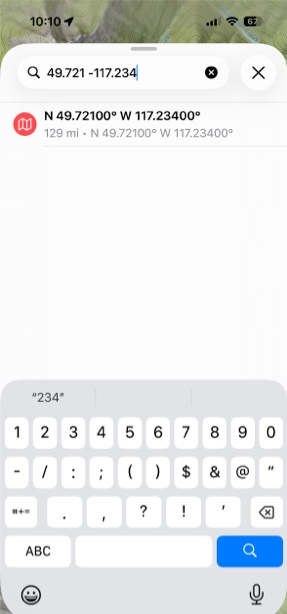
You can enter the following formats when searching for a coordinate.
49.721 -117.234
N49.721 W117.234
49 43.2600′ -117 14.04′
N 49 43.2600′ W 117 14.0400′
N49 43′ 15.60″ W 117 14′ 2.40″
N49 43 15.60 W 117 14 2.40
49 43′ 15.60″ -117 14′ 2.40″
11UMQ 67074 51343 (MGRS)
11U 483133mE 5507637mN (UTM)
11 483133mE 5507637mN (UTM)
83133 076437*
83133mE 076437mN*
* When entering UTM coordinates you can use the 5 by 5 format by entering the last five digits of the easting and northing and Topo Maps+ will use figure out the first digits by the location of the map. So if you entered “83133 076437” and Topo Maps+ was centered over 11U 480000mE 5500000mN then it would go to coordinate “11U 483133mE 55076437mN”.