Printing Maps
While Topo Maps+ is an awesome application to help you go deeper into the backcountry it is not wise to rely solely on technology. Having a printed map can sometimes be the difference between making it out and being lost with an iOS device that ran out of battery. Topo Maps+ makes it easy to print maps on your printer at home. To make sure your map lasts during your adventure you can print those maps on Adventure Paper or put them in a waterproof case.
How to Print Your Map:
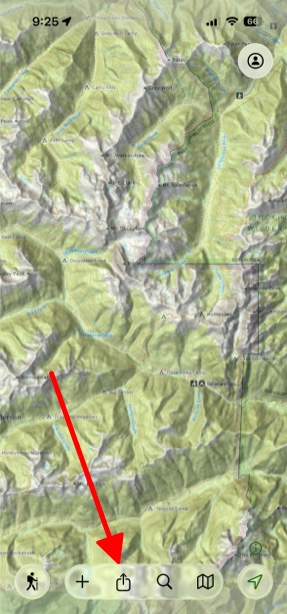
- Tap on Share in the toolbar at the bottom of the screen.
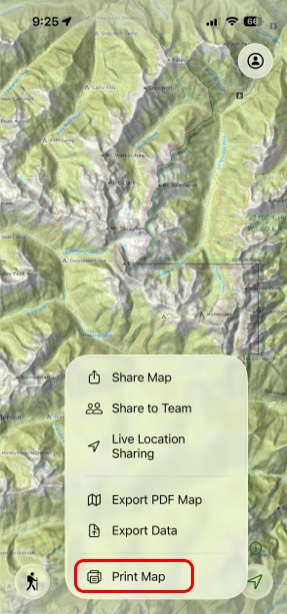
- Next, tap Print Map.
- Then zoom the map in the view window to set the area you want to print.
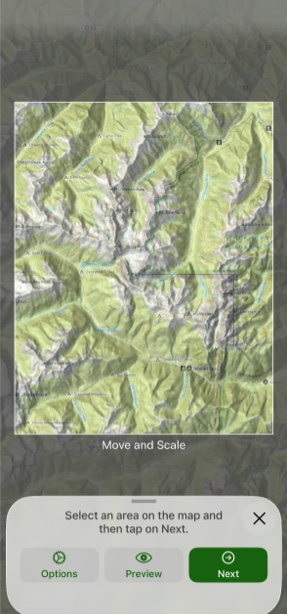
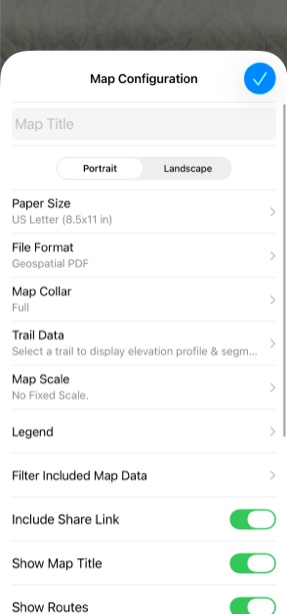
- If you want to set print options such as a map title, format the collar around the map, show grids or set a map scale tap on the Options button to do that (*note, if you choose a fixed scale you won’t be able to zoom the map, only center it).
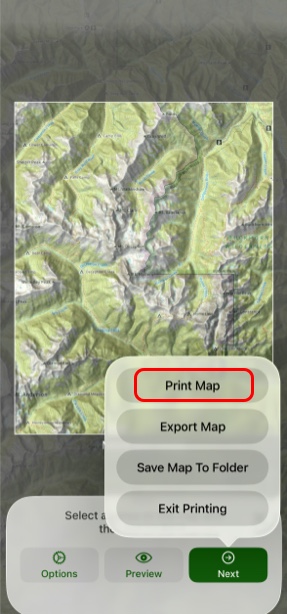
- Finally, tap on Next and then Print Map, Export Map, or Save Map To Folder.
Export Map lets you export the PDF to share or save to files, without having to print it right there.
Save Map To Folder lets you save the PDF image in a folder, so you can keep it with your trip data.