Importing Maps (Geospatial PDFs & TIFFs)
Topo Maps+ allows you to import external maps (they must be geo-tagged) and add them to your map library in the app.
First, you’ll need to have the file downloaded to your iOS Files app. You can email it to yourself, download directly from the website hosting it, or grab it from your iCloud files.
Once the geo-tagged file is on your device, open Topo Maps+.
- First, tap the Add button.

2. Next, tap Import Maps.

3. Then, select your file.

4. Check that your file will show.

5. Then, scroll down and select the quality you want to import (we recommend the highest quality for best results).
Note: The “Set Background to White” button is for adding a white background to a PDF map that does not already have a background. Otherwise the map will be “see-through” some places. Depending on your map file, you may want to try importing it under both options to see which one works better.

6. Finally, simply tap Import Map.

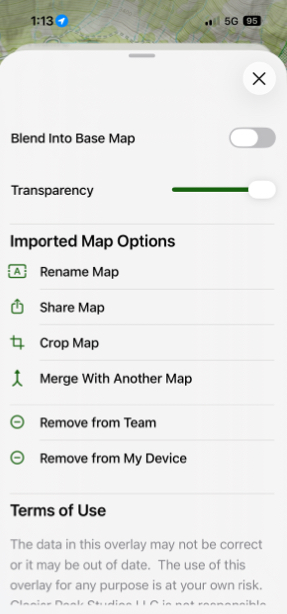
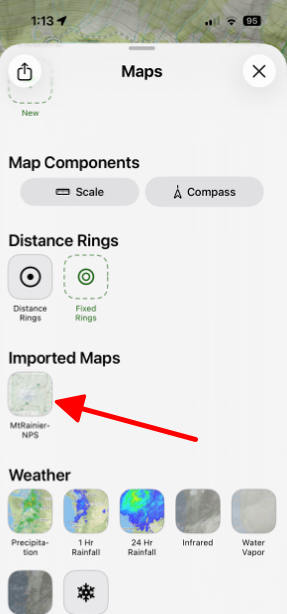
7. Once successfully imported, you can edit it or adjust its settings in your overlay dashboard. To do this tap on the map icon in the bottom right corner.

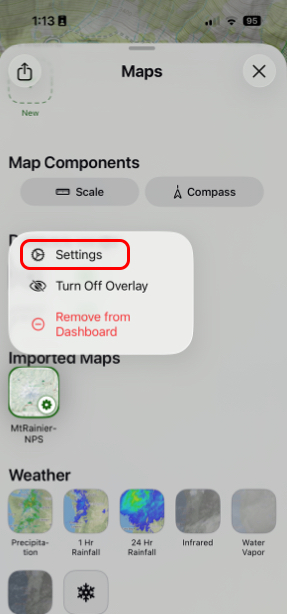
8. Next, tap and hold on one of your imported maps under Imported Maps.
9. Then tap Settings.
10. Here you can customize your imported map.