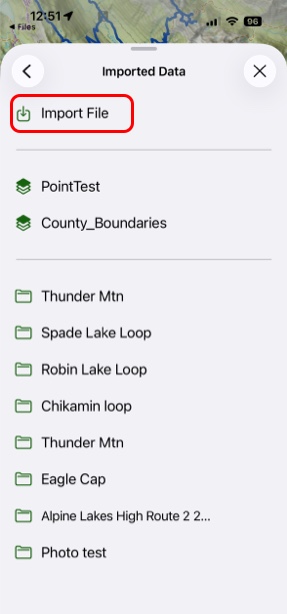
Importing Data
Topo Maps+ supports importing routes, tracks, waypoints, and regions (polygons) from KML and GPX files. The easiest way to import the data into Topo Maps+ is email yourself the file, then on your iPhone find the email, select the file, tap on the share button, and then select Topo Maps+ as the destination.
When Importing Data From Files:
- Tap and hold on the file you want to import.
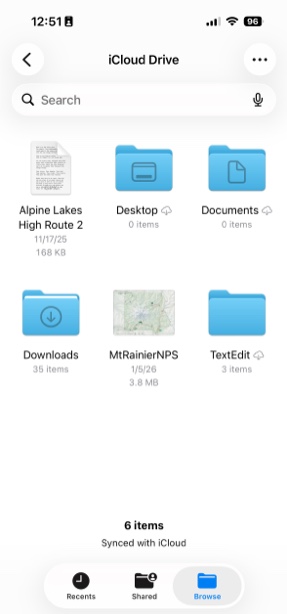
- Next tap Open With.
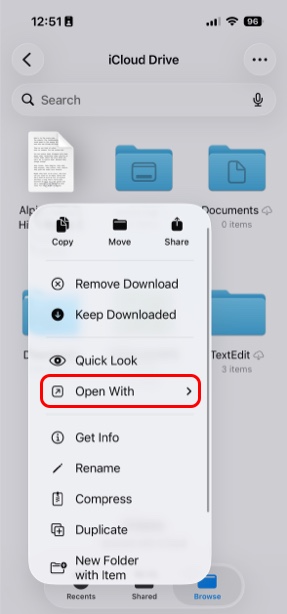
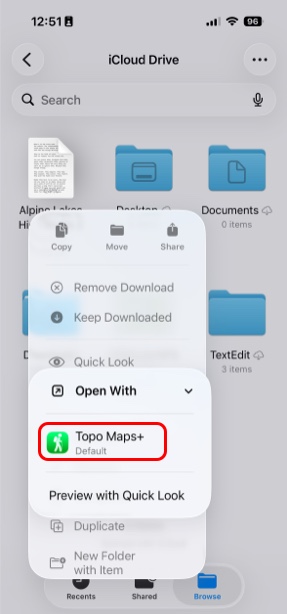
- Then make sure you import it with the app Topo Maps+. Then tap on the app and it should display your information in Topo Maps+.
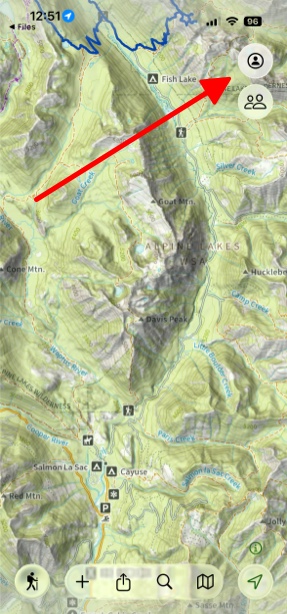
- To view the file you imported to Topo Maps+ then simply tap the Account button in the top right corner of the screen.
- Then scroll down and tap Imported Data.
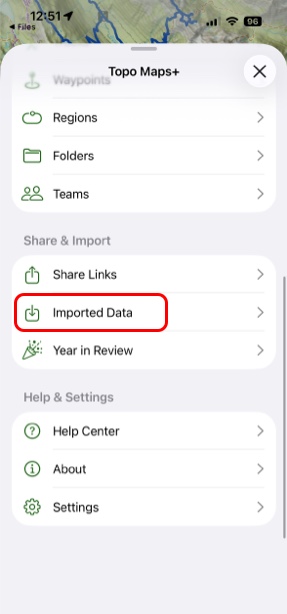
- Here you can see what file was imported and open it up.