Folders
Folders are a great way to keep data for trips or areas organized. When data is in a folder, you can toggle all of that data on or off by selecting the folder in Overlays.
Setting Up and Adding To A Folder:
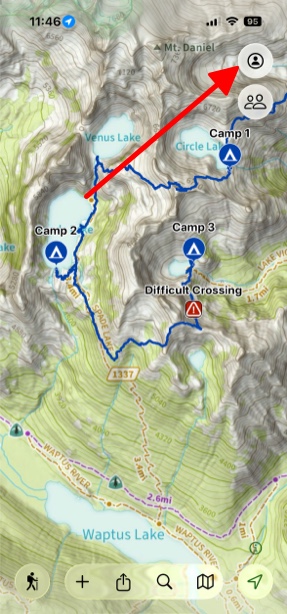
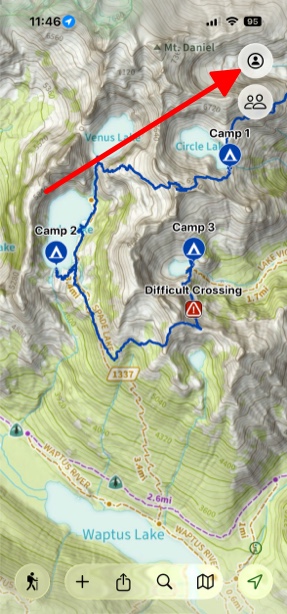
- Tap the Account button in the top right of the screen.
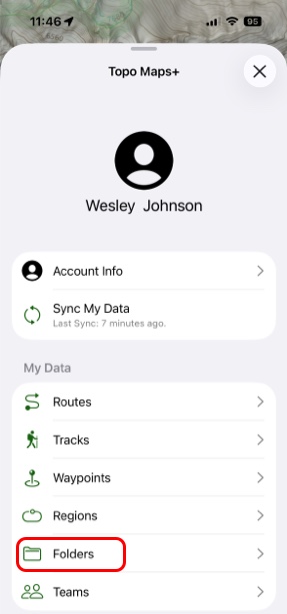
- Next tap on Folders.
- From here, you can either view and edit folders, or add a new one.
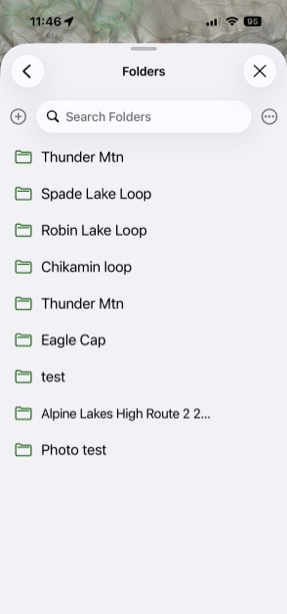
- When viewing a folder, you can edit the current contents, or add new data. Hold and drag on any piece of data to rearrange.
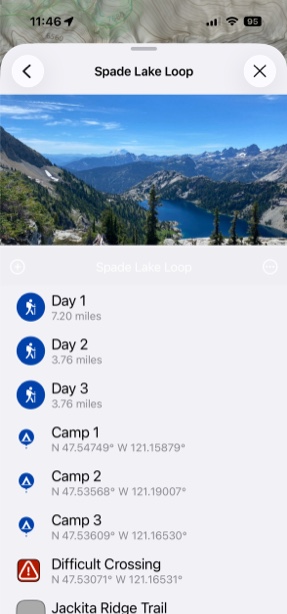
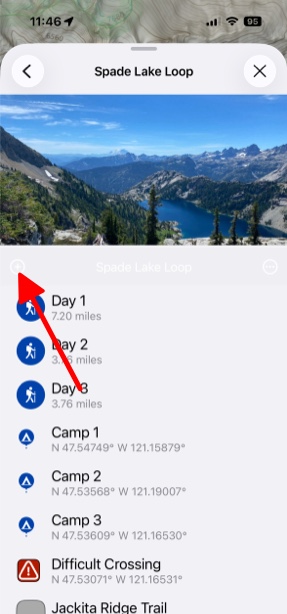
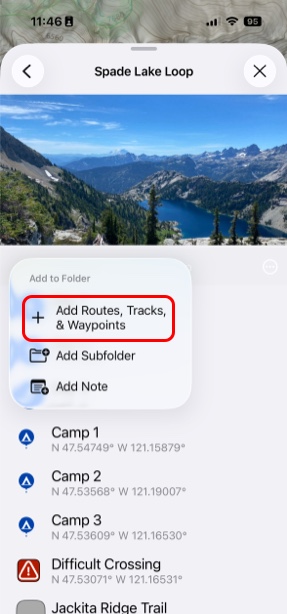
- To add to your folder from your saved data, tap the add button in the bottom left corner of the folder image, then select Add Routes Tracks & Waypoints.
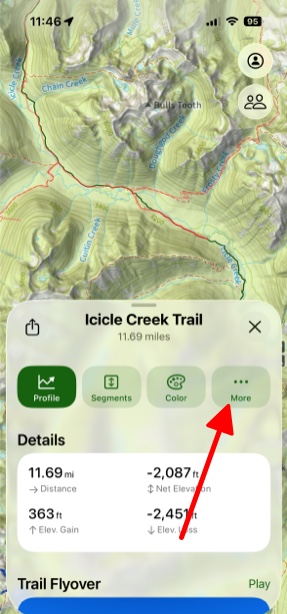
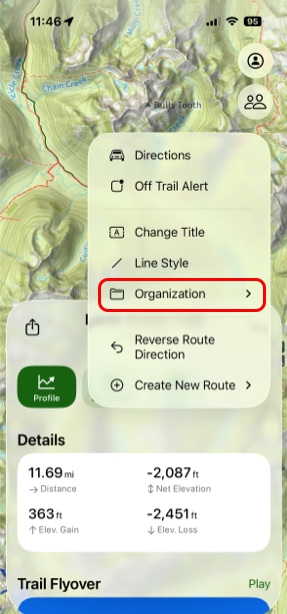
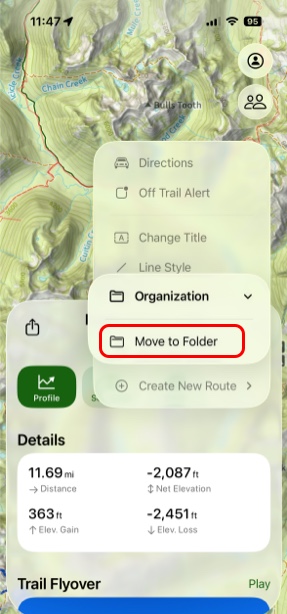
- Another way to add routes, waypoints, etc. to folders, is by pulling up the info card for that specific thing and tapping More. From there tap Organization and then Move to Folder. After that, simply select which folder you want to add it to.
Bulk Moving Data Into Folders:
- Tap on the Account button in the top right of the screen. Then tap whatever items you want to share, whether that be a waypoints, trails, etc.
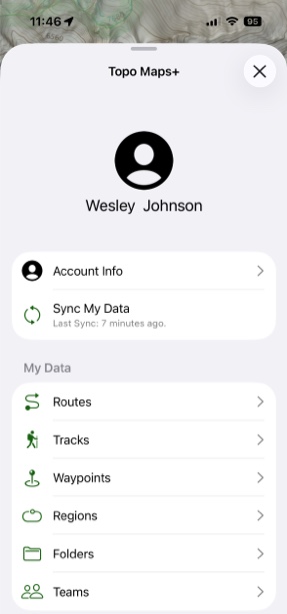
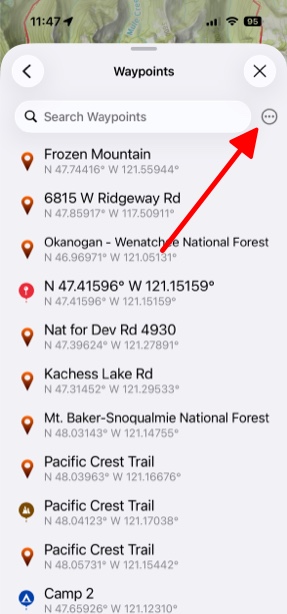
- Next simply push the 3 Dots in the top right corner of the tab and tap Select and Edit. From there you can select which ones you want to move over.
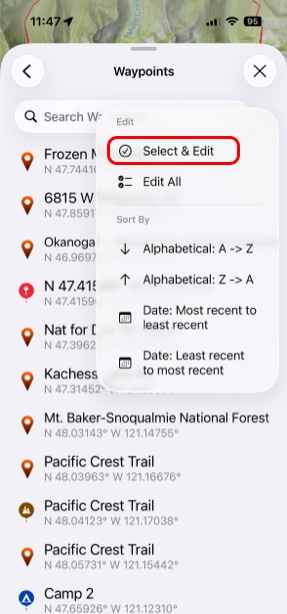
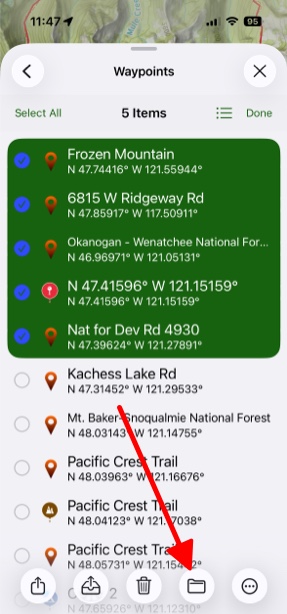
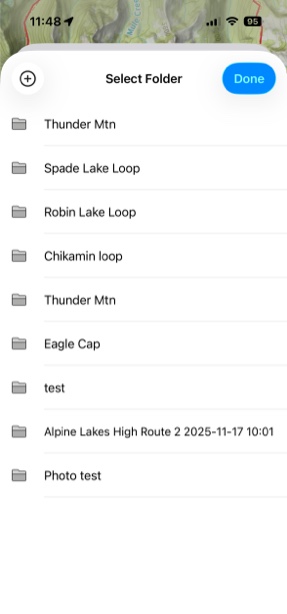
- Then when you’re done with that, simply tap on the Folders button at the bottom of the screen, and select which folder you want to transfer it to.