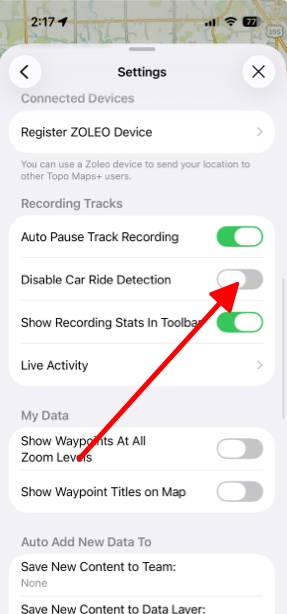
Car Ride Detection
Car Ride Detection automatically helps keep your activity tracks accurate. When enabled, it detects when you start driving and prompts you to stop recording, so your recorded route ends where your activity actually ended—not after your drive home. This feature works on iPhone and Apple Watch and can be turned on or off at any time in the app settings.
When your device senses that you’ve started driving away this notification will pop up:
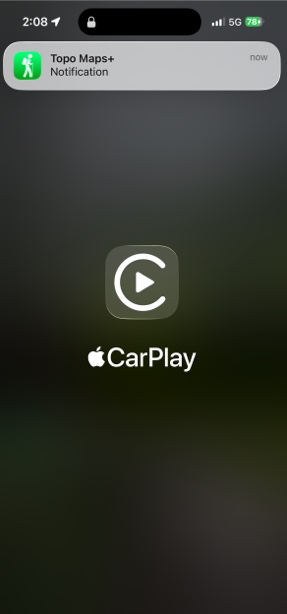
That notification will take you to this picture. Here you can simply say whether you are ending your track or not:
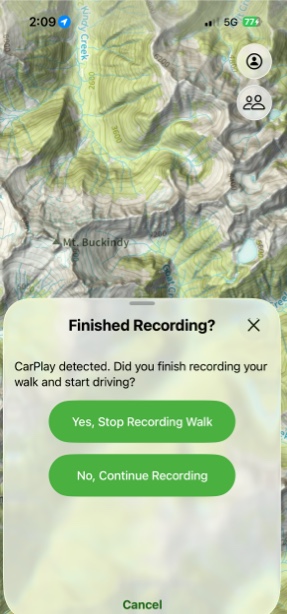
Car Ride Detection
Car Ride Detection helps prevent car travel from being added to your activity tracks by detecting when you switch from a human-powered activity to riding in a vehicle.
The way this feature works depends on your device and the type of activity you’re recording.
How Car Ride Detection Works on iPhone
Low-speed human-powered activities
When recording a low-speed activity, the app monitors your speed. If your speed suddenly increases beyond normal human-powered movement, you’ll receive a notification asking whether you are driving.
Supported low-speed activities:
- Hike
- Backpack
- Mountaineering
- Thru-hiking
- Walking
- Snowshoeing
- Trail running
- Running
- Paddle
High-speed human-powered activities
For high-speed activities, the app does not rely on speed. Instead, it detects car travel only when your iPhone connects to CarPlay.
Important notes:
- If your vehicle does not support CarPlay, detection will not occur for high-speed activities.
- If you don’t use CarPlay, the app cannot detect car travel during high-speed activities on iPhone.
Supported high-speed activities:
- Biking
- Skiing
- Snowboarding
- Cross-country skiing
- Mountain biking
How Car Ride Detection Works on Apple Watch
Low-speed human-powered activities
Works the same as on iPhone by monitoring sudden increases in speed and prompting you if you may be driving.
High-speed human-powered activities
For high-speed activities on Apple Watch, the app uses a combination of speed and heart rate:
- If your speed increases
- And your heart rate drops close to your resting heart rate
- While you are still recording
The app will prompt you to confirm whether you are in a vehicle.
This approach is calibrated to avoid false detections when coasting downhill on a bike or skis. Because heart rate takes time to return to resting levels after exercise, detection may be slightly delayed after you finish your activity.
Why Detection May Be Delayed
After intense activity, your heart rate typically takes several minutes to return to resting levels. The app waits for this recovery period to avoid incorrectly stopping your track while you are still active.
In real-world use, detection may occur a few minutes after entering a vehicle, especially if you leave immediately after finishing your activity.
Toggling On or Off the Car Ride Detection
- Tap the Menu button in the top right corner of the screen.
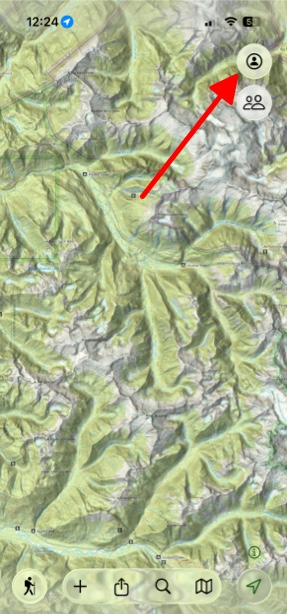
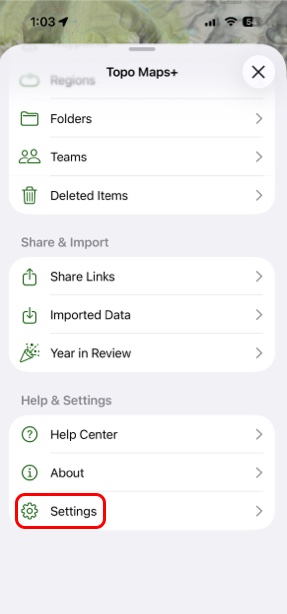
- Scroll down and tap Settings.
- Scroll down and toggle on Disable Car Ride Detection under Recording Tracks.