Sharing, Exporting, & Printing on Mac
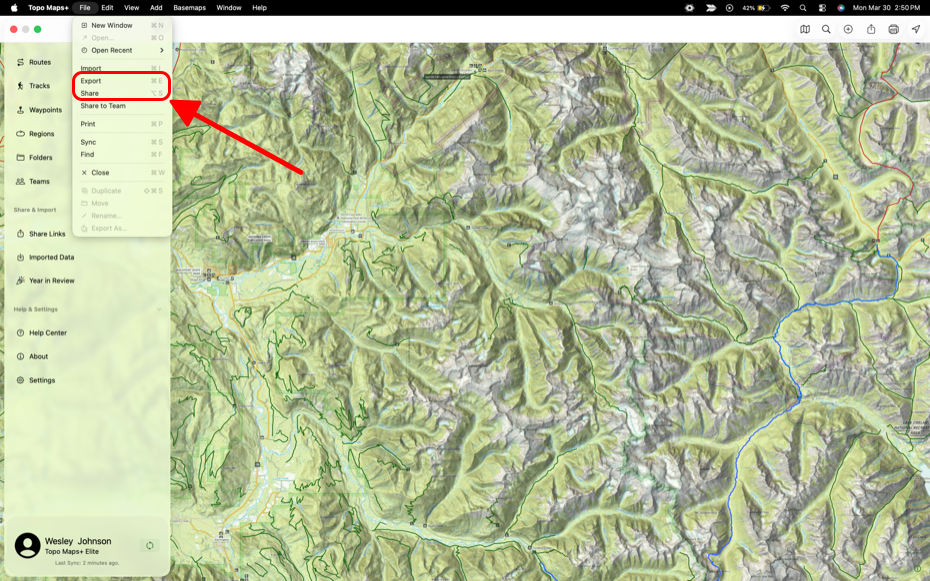
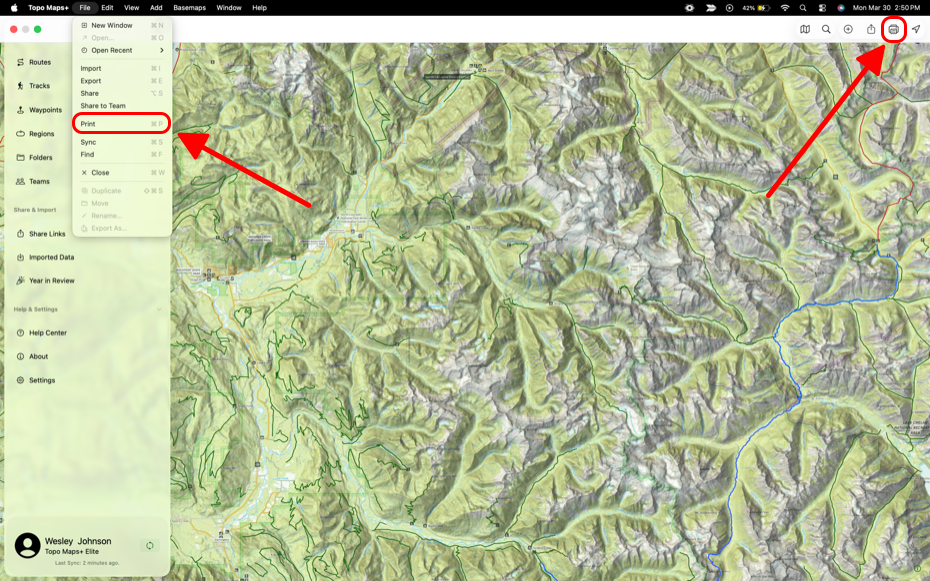
To share, export, import or print on Mac click File in the toolbar in the top left of the screen.
Sharing & Exporting
- Click Sharing or Exporting under File.
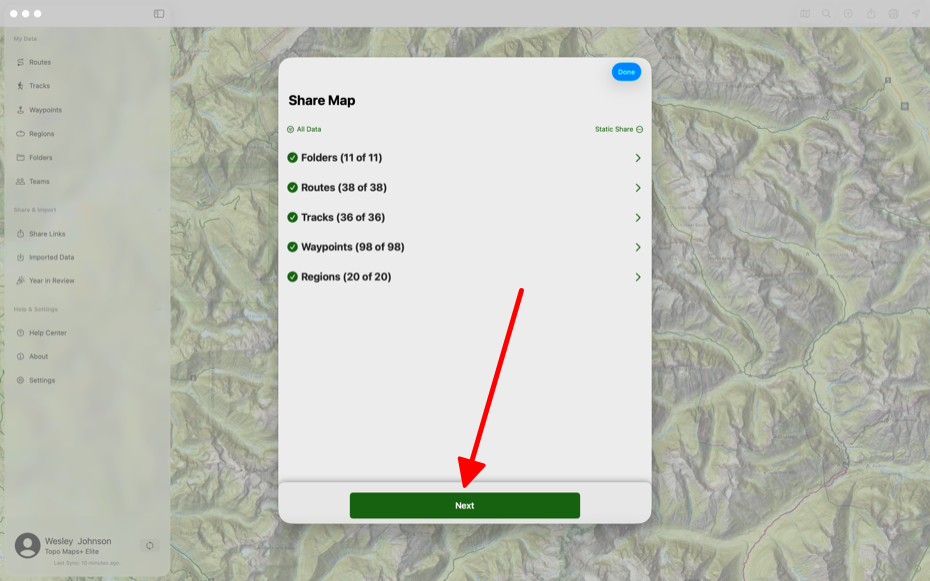
- Then select what data you want to share.
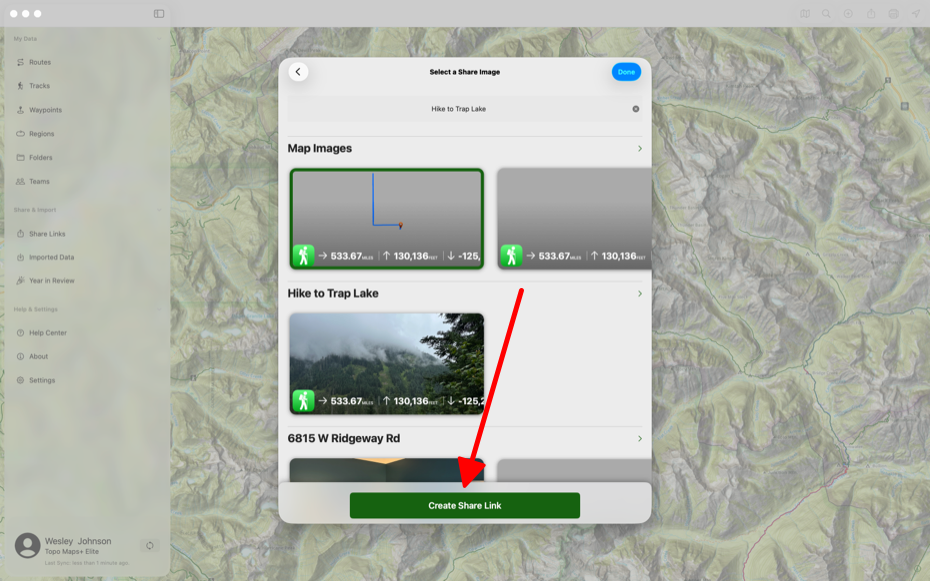
- When sharing you will need to select an image to display as a thumbnail.
Printing
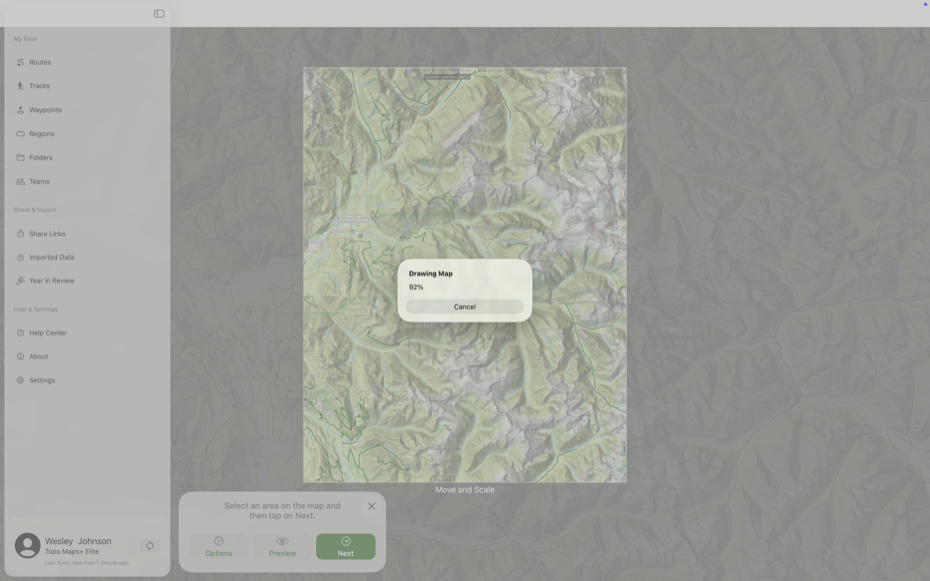
- Click the Print button under File or click the Print icon in the top right corner of the screen.
-
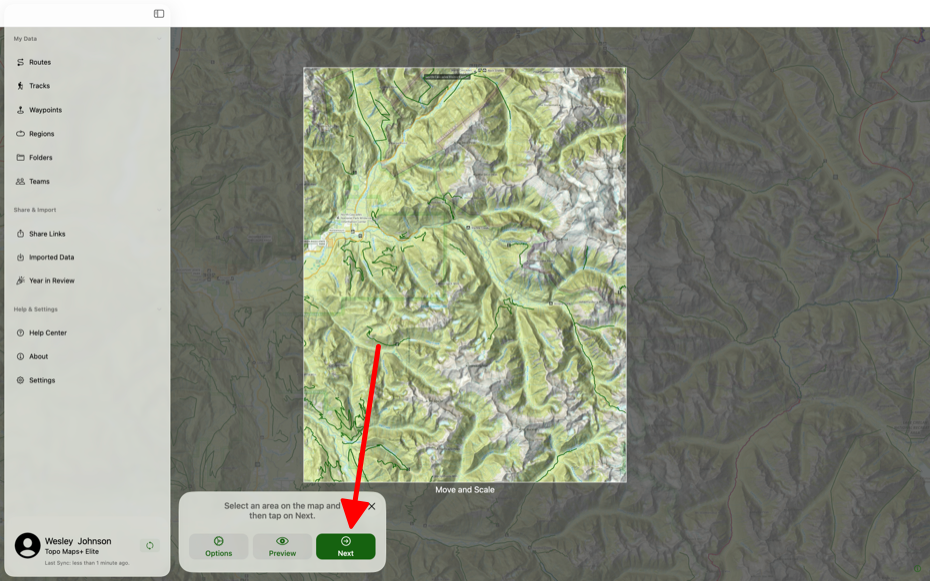
Clicking Options allows you to select what you want to show on the map, what file type you want, and orientation settings.
Clicking Preview will generate a print preview that is downloaded automatically.
Clicking Next allows you to choose between printing, exporting, saving to a folder, and exiting.
Note: The Mac app doesn’t have a download button since it’s not meant for offline use. However, you can click Preview to generate a print preview, which downloads automatically and can be viewed offline.
-
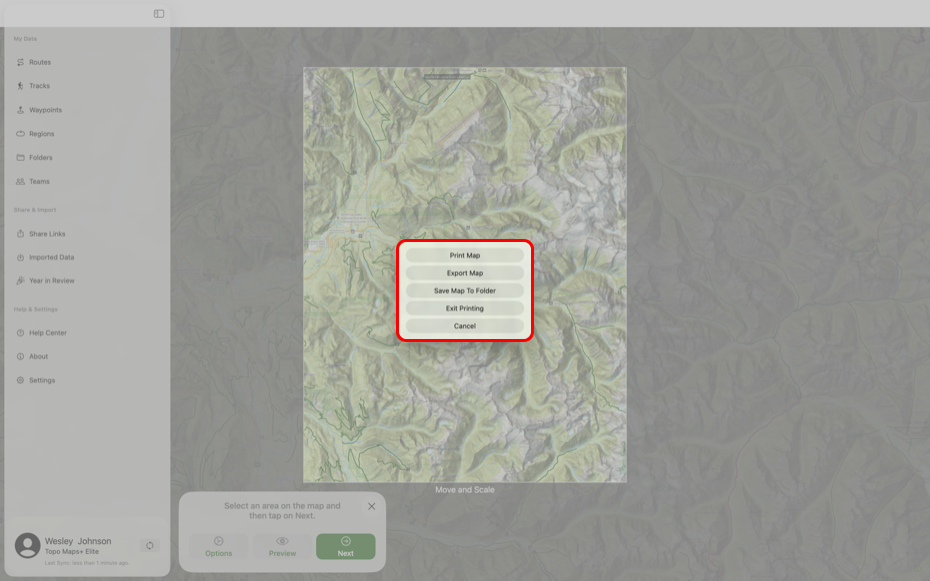
Once you click Next you can either print, export, or save your map to a folder.
- Additionally, areas you view on the Mac are cached and never deleted. Anything you’ve zoomed or panned over will be available offline—even after quitting the app and turning off Wi-Fi.