
Screen Gestures on Apple Watch
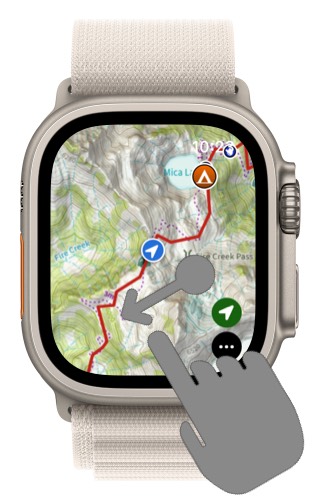
Swipe
To move the map, just swipe on the map.
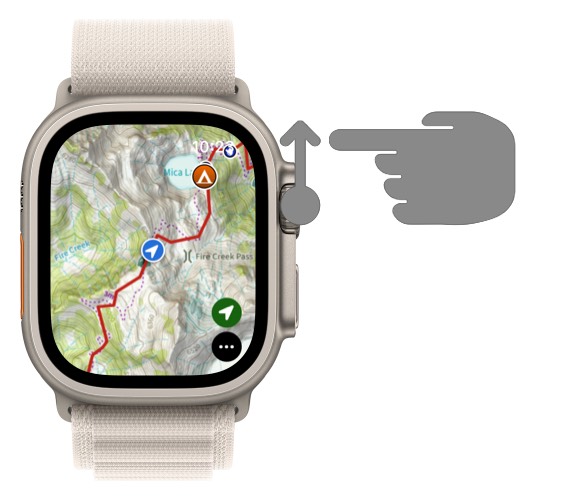
Digital Crown
Rotating the Digital Crown will zoom the map in and out
Location Button
Tap the green location icon on the right to swap between modes:
- When the location button is hollow the map will not stay centered on your location.

- When the location button is solid your location will stay fixed in the middle of the map.

- When the location button points up, the map will rotate to orient itself to the direction your watch is facing.

Single Tap
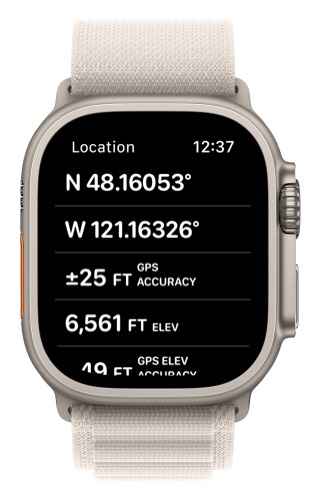
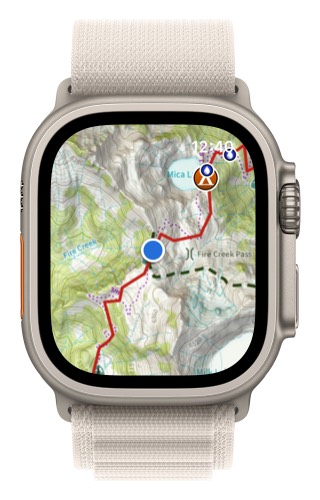
If you tap on your location on the map,

you will see the information for your current location.
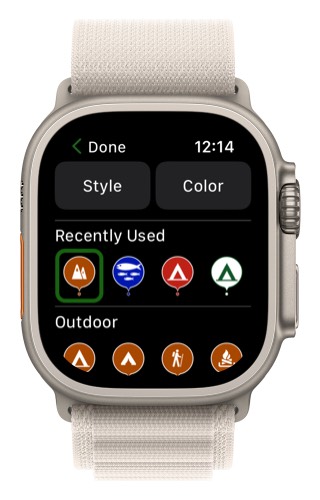
If you tap on a waypoint you will see the waypoint information.
If you tap anywhere else on the map, the app will toggle full screen mode.
Double Tap
If you double tap on the map, it will zoom in on that location.
Tap and Hold
If you tap and hold on the map it will bring up the zoom in menu. At the bottom you will see the coordinates and elevation for the area under the crosshairs.
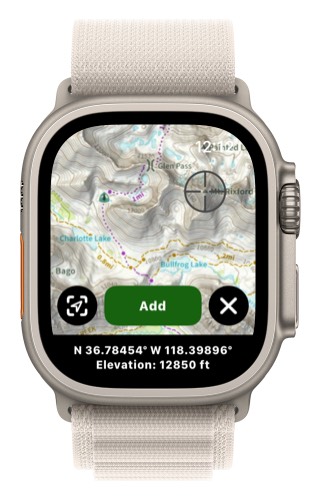
If you tap on the guide me button (bottom left), you will be able to navigate to that location. (This will only show up if your Apple Watch has a compass.)
If you tap on the cancel button (bottom right), this menu will go away.