Creating A Team on Android
Setting up a team allows you to share routes, waypoints, recorded tracks, regions, and notes automatically between other Topo Maps+ users as well as view your team’s live location when you get cell service or even occasional, spotty service.
Setting up a team:
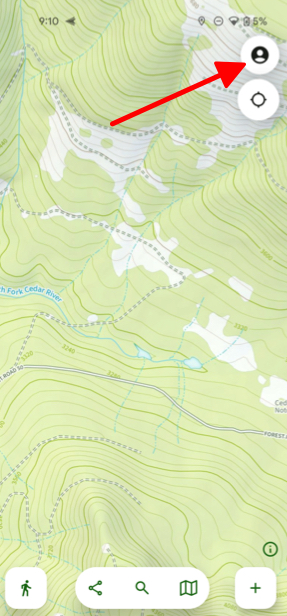
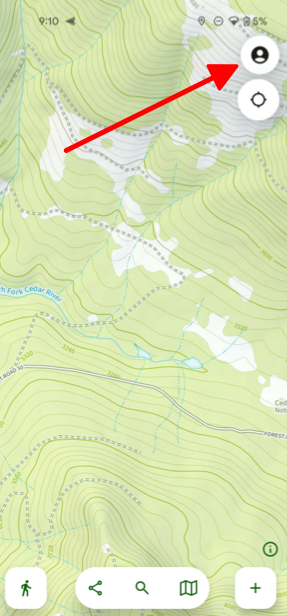
- Tap on Account in the top right corner of the screen.
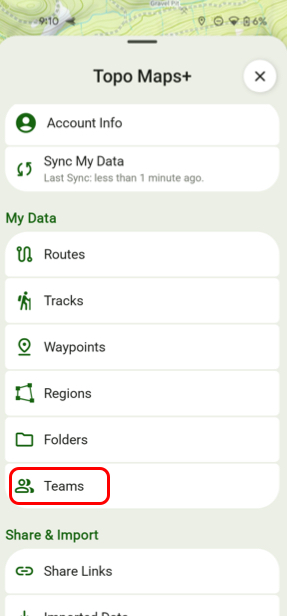
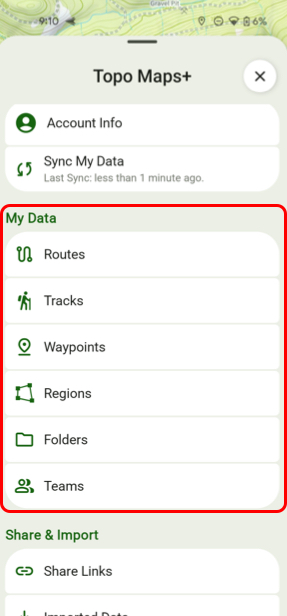
- Next, tap Teams.
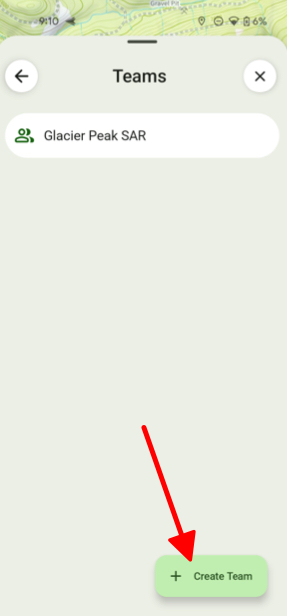
3. Then tap Create New Team.
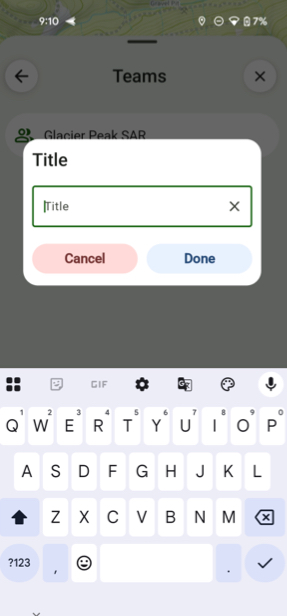
4. Then name your team.
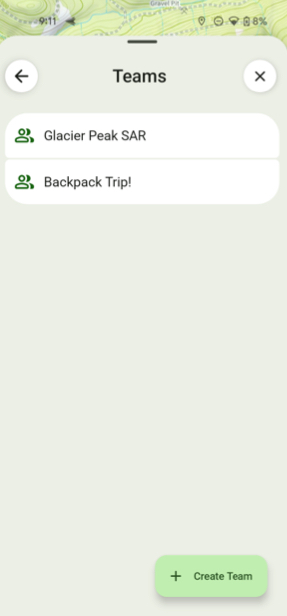
- Next select the team you just created.
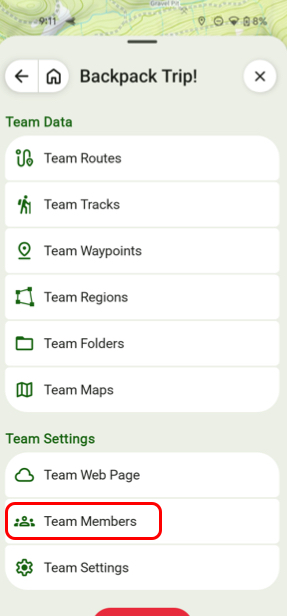
- Then tap Team Members.
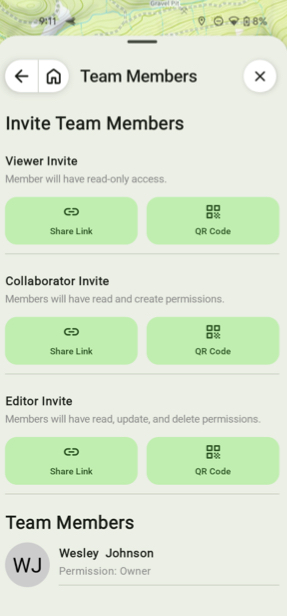
- From there you can decide how you want to send the invite for your team to others.
- Go back to your team's main page and tap Team Settings.
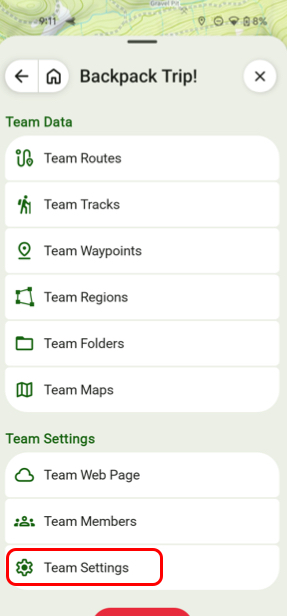
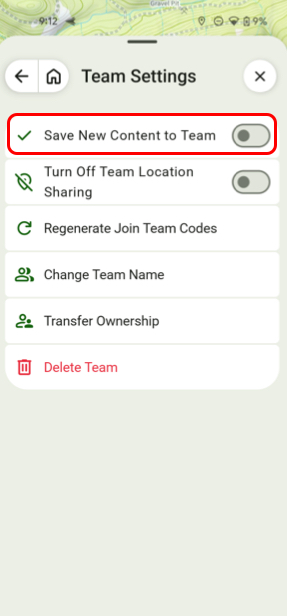
- If you want to save new content to your team automatically toggle on Save New Content to Team.
How to Move Data to Different Specific Teams:
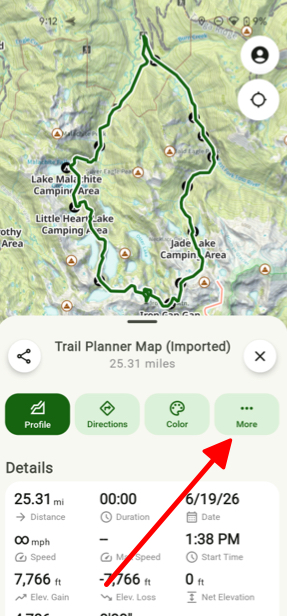
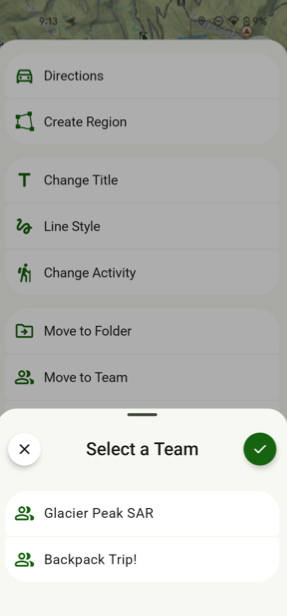
- Pull up the info tab for your chosen route, waypoint, etc. and tap More.
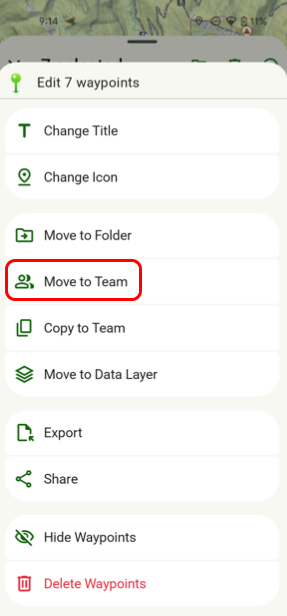
- Next tap Move to Team.
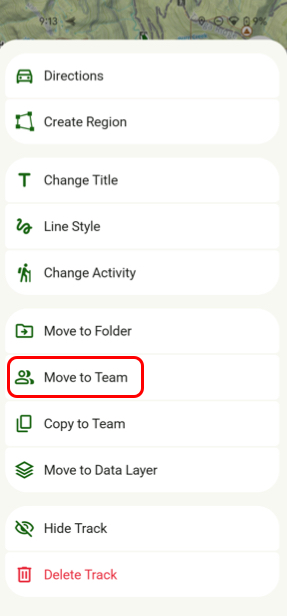
- Then select which team.
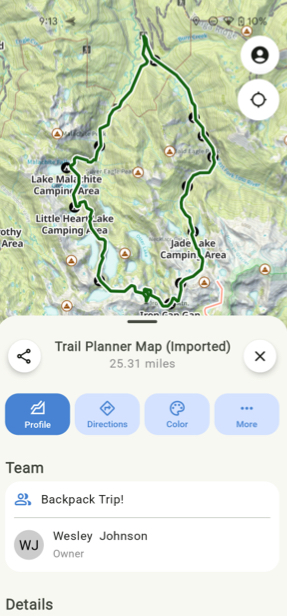
- Then you can view your imported map information.
Bulk Moving Waypoints, Folders, Etc. To A Team:
- Tap the Account button in the top right corner of the screen.
- Next tap Waypoints, Folders or whatever else you want to share.
- Then tap the Checklist button at the top of the tab and tap Select & Edit.
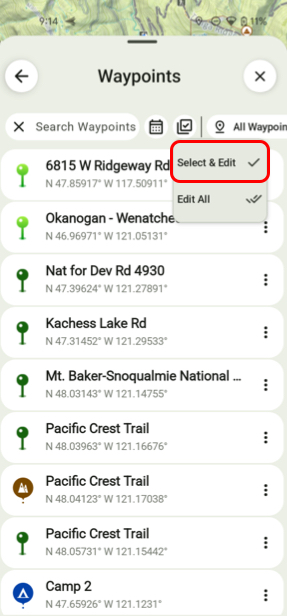
- Then select which pieces of information you want to edit and tap the 3 Dots in the top right corner of the screen.
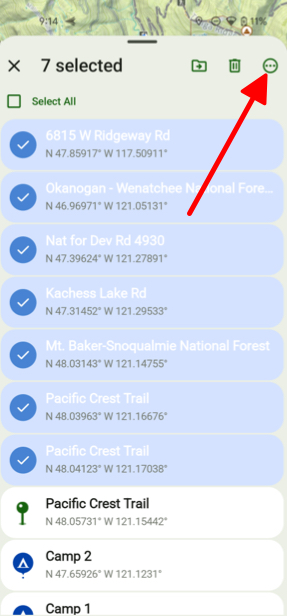
- Next tap Move to Team.