
Sharing & Exporting Content on Android
There are several types of files you can share in Topo Maps+: data files and map image files.
Let’s define a couple terms here:
Exporting: This is used for directly sending a KML, GPX or PDF file via email, airdrop, etc. GPX and KML are map data files can be opened in pretty much any mapping app. A PDF is simply an image.
Sharing: This is uploading the file to Topo Maps+ servers and allows a link to be shared to that specific data. Again, this can be KML, GPX, or PDF.
To easily share or export groups of data, tap the “Share” button in the toolbar, and select either Share Map, Export GPX Data File or Export KML Data File.
For Sharing A Whole Map:
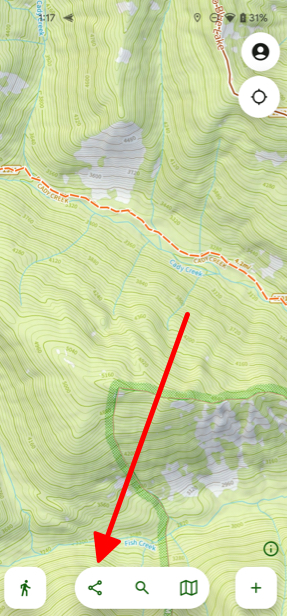
- First, tap Share in the toolbar at the bottom of the screen.
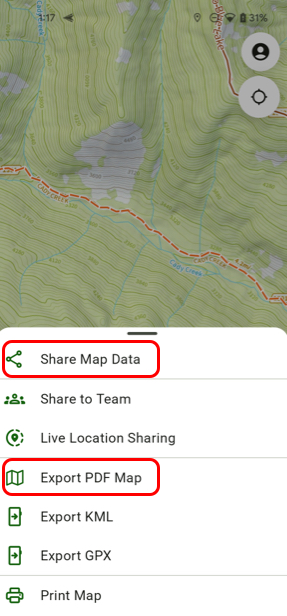
- Next, you can either tap Share Map, or Export PDF Map.
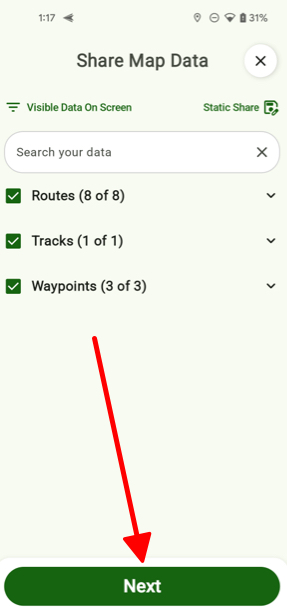
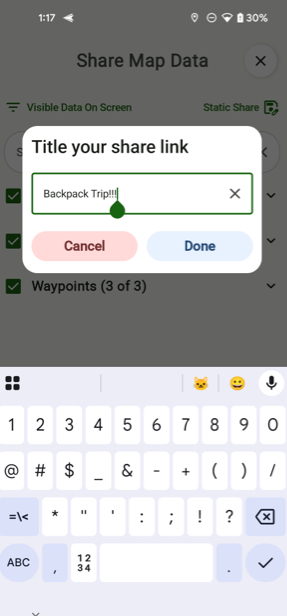
- Then, simply select which items you want to share and tap Next. Then you can name your team and share it with whoever you would like.
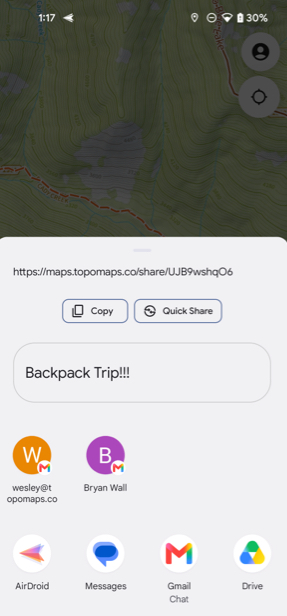
For Sharing Individual Routes, Tracks, Regions, or Folders:
- Go to the property tab for what you want to share and tap the share icon in the top left of the tab (ex. Route).
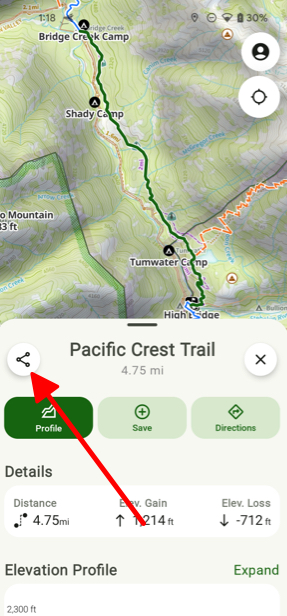
- Then, simply tap Share Trail or Export Trail.
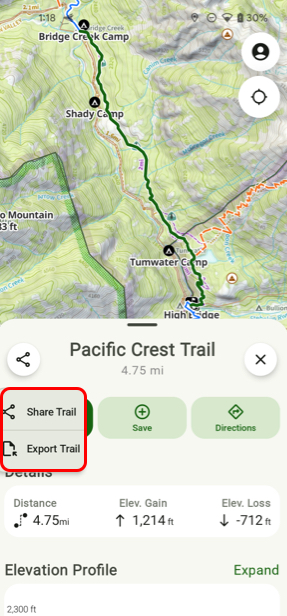
For Sharing Folders:
- Tap My Account and Data in the top right corner of the screen.
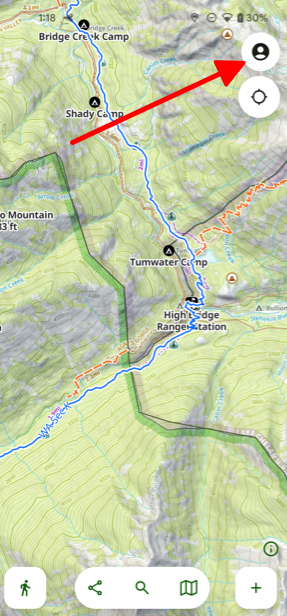
- Next, tap Folders.
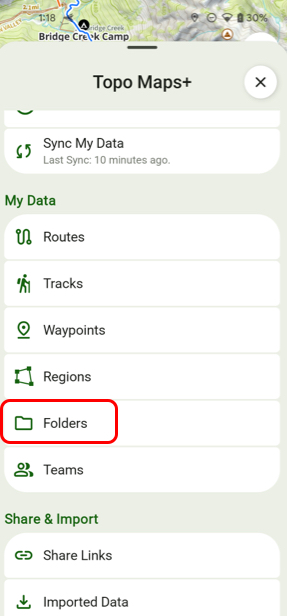
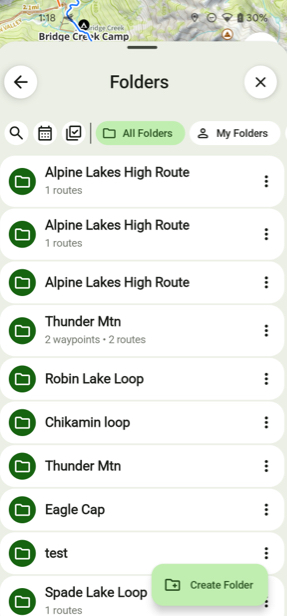
- Then, tap whichever folder you want to share.
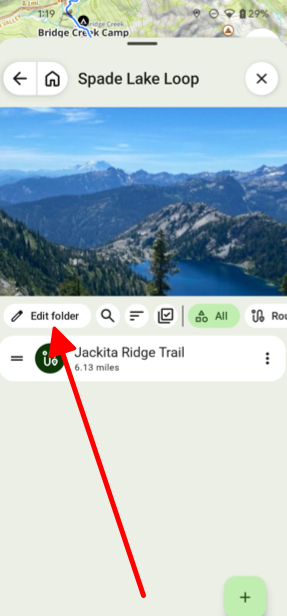
- From there, tap Edit Folder.
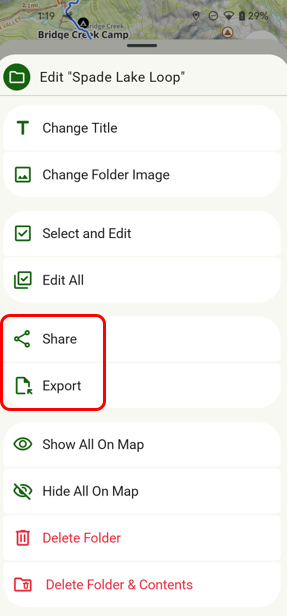
- Next, tap Share or Export.
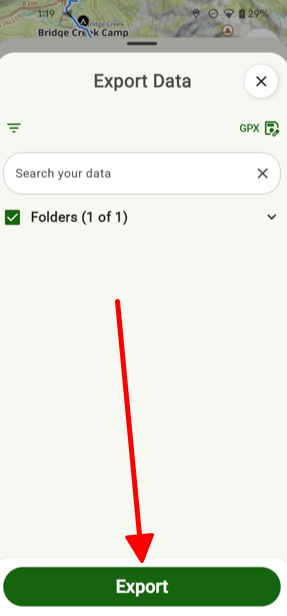
- Finally, select everything you want to share in that folder, and push Export or Share, whichever you selected originally.
Note: If you select Share rather than Export, you can generate a link for anyone that has it to download the data directly from the Topo Maps+ website. This is private to whoever has the link and is a great way to share lots of data with the ability to update the folder while keeping the same link for your hiking buddies to return and download the updated info. To learn more about sharing web links, click here.