Creating Regions
With Topo Maps+ Pro you can add regions to the map. Sometimes the information you want to track on the map can’t be captured with just waypoints and routes. For example, maybe you want to keep track of an area where you found good huckleberries or a property boundary that you want to stay in while you are hunting, or a region where you have searched.
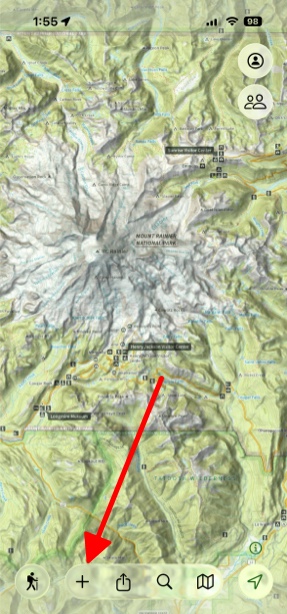
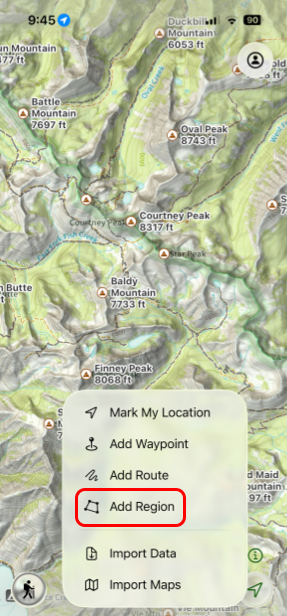
- To create a region, tap on the Add Symbol at the bottom of the screen, and then tap Add Region.
2. Next select the method you want to use to create your region.
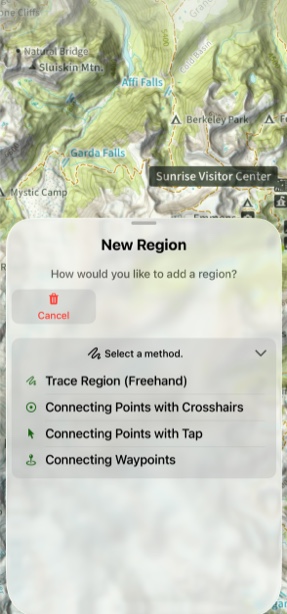
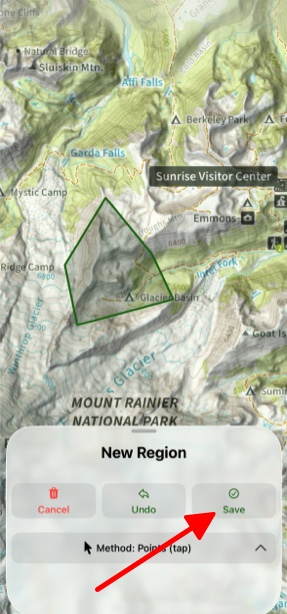
3. After creating your region, tap Save.
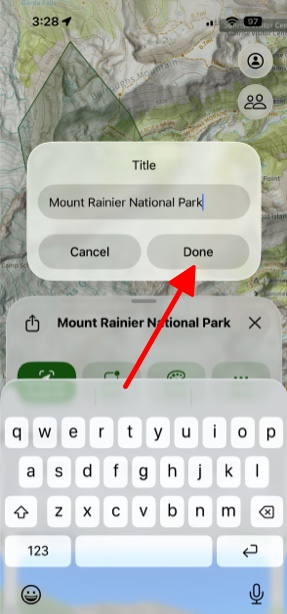
4. Then name your region and tap Done.
5. If you tap on your region, then information on that area will pull up. If you want to also customize the region itself, you can add fill color and/or border color, as well as create a Proximity Alert for the region.
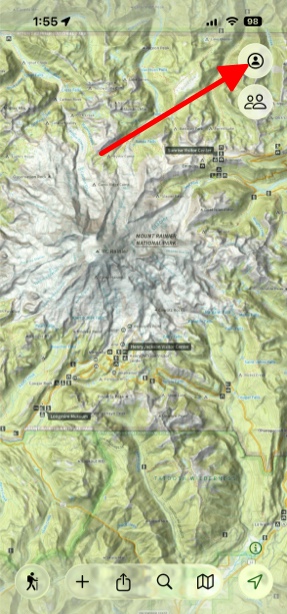
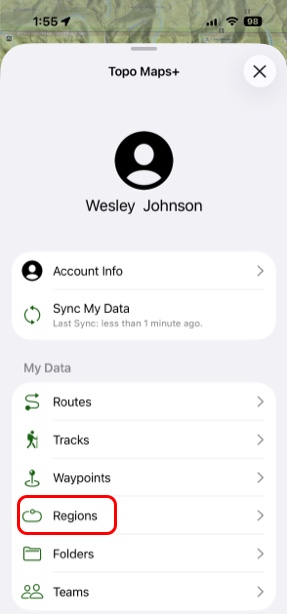
6. To access saved regions, tap My Account and Data and then tap Regions. There your created regions will be stored.