
Waypoints on Apple Watch
Adding a Waypoint:
- Tap on the menu button in the lower right corner.
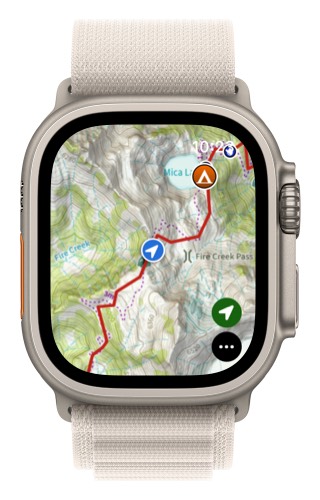
2. Select either “Mark My Location” or “Add Waypoint”.
Mark My Location will add a waypoint at your current location.
Add Waypoint will let you add a waypoint anywhere on the map. (Pro tip: you can also do this by tapping and holding on the map where you want to drop your waypoint.)

-
Move the crosshairs on the map to the location where you want to add the waypoint and then tap on Add.
If you tap on a waypoint on the map you can edit the waypoint title and icon.

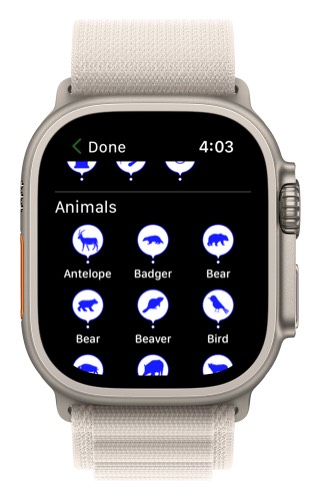
- If you tap on the “Icon” you can select all of the same icons that are available on your iPhone.

- You can change the style by tapping on the Style button at the top.
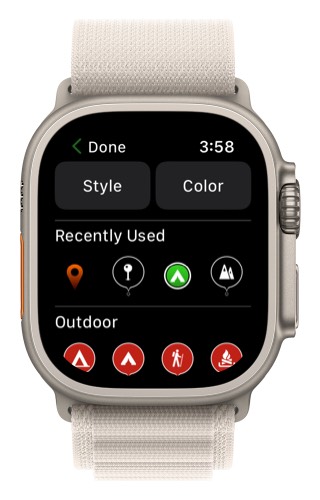
- You can scroll down and change the icon size.
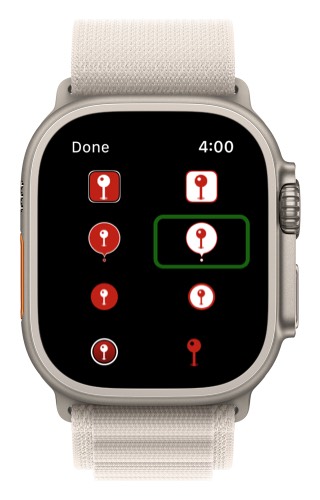
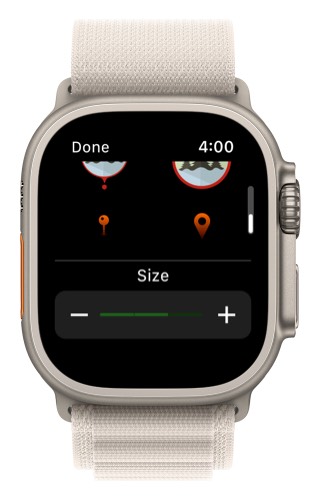
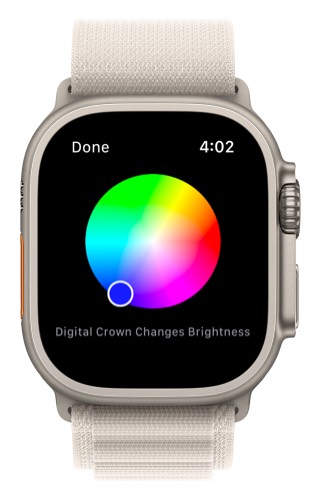
- When you select the Color button you can change the icon’s color by moving the circle on top of the color wheel. Rotating the digital crown will change the color brightness.
- You can scroll down in the list of icons to see all of the icon available for the currently selected style, size, and color.
You can also have Topo Maps+ guide you to a waypoint.
If you have an Apple Watch Ultra you can set up the Action Button to Mark your Location.