
Intro to iPad App
Welcome to Topo Maps+ for the iPad! Haven’t downloaded the app yet? Click here!
To get started, here is an overview of the buttons displayed on the main screen of the app:
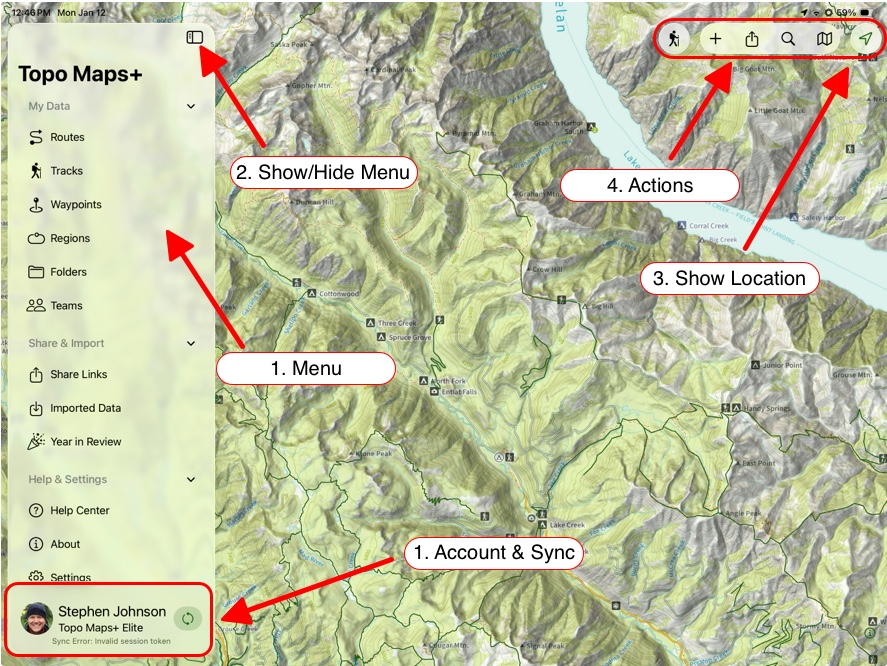
- Menu: This is where you can view your saved Routes, Tracks, Waypoints, Regions, Folders, and any Teams you are a part of. You can also access the Help Center from here and change your settings.
- Show/Hide Menu: Tap this to show or hide the main menu.
- Show Location: Note: In order to mark your location, Topo Maps+ needs permission to view your location. There is a prompt when you first try to view your location, or you can go into your iPhone settings (gray gear icon) and scroll down to the Topo Maps+ entry to do this.
- Tap once to center on your location.
- Tap it again to orientate the map based on the compass.
- Tap a 3rd time to hide your location dot.
- Actions: Access map functions here:
- Add: Tap this button to add a Route, Waypoint, or Region.
- Search: Tap this button to Perform Searches.
- Hike (On-Trail Tools): Tap this button to access tools for the trail.
- Share: Tap this button to Share, Print, and Export.
- Maps (Map tools and overlays): Tap this button to view the map menu. (Want to learn more about map options? Here are two articles to help: Preset Map Dashboard and Advanced Map Dashboard.
- Account & Sync: Tap this button to view your account information. Tap the revolving arrow icon to Sync Your Data.
Why the iPad app?
Topo Maps+ for the iPad is a good option if you want a bigger screen than a phone, but don’t have a Mac or are more comfortable with touch screen and gestures.
If you have an external keyboard for your iPad, you can use keyboard shortcuts just like on a Mac!